Evergreen Contracts in Campfire
Last updated: June 29, 2026
Campfire’s Help Center has moved. As of June 2026, this article is no longer being updated. Find the latest version in our new Help Center: view here.
An Evergreen Contract is a contract with no end date. It renews automatically at the end of each billing period, generating invoices and revenue data on your behalf. Billing can be set to monthly, quarterly, biannual, or annual.
When the contract is first created, Campfire generates roughly one year of invoices and revenue data in advance. At the end of each billing period, one additional period is added automatically so you always have at least a year of forward-looking data.
How to Create an Evergreen Contract
Go to the Contracts page and click Create Contract.
On step 3 (Terms), set Evergreen to Yes.
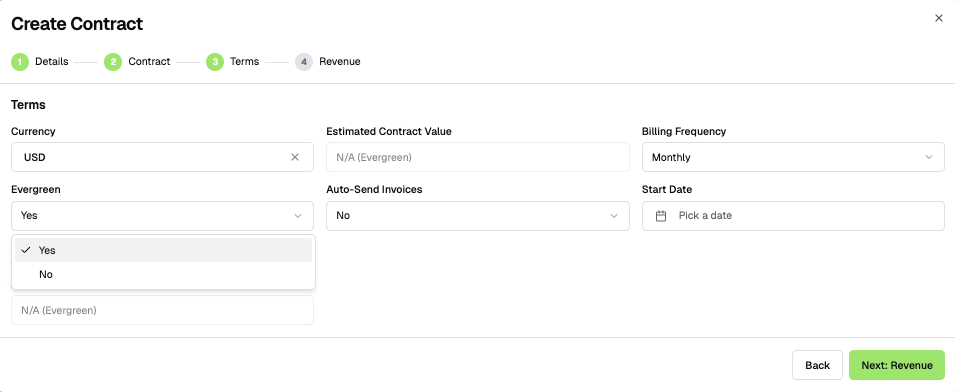
Choose your billing frequency.
Set the start date (today or later).
If you want invoices sent automatically on the first day of each billing period, set Auto-Send Invoices to Yes.
On step 4 (Revenue), add your subscriptions or skip and add them later.
Managing Subscriptions
Subscriptions are the line items on your Evergreen Contract. They represent the recurring (or one-time) charges that drive invoice and revenue generation.
Adding a Subscription
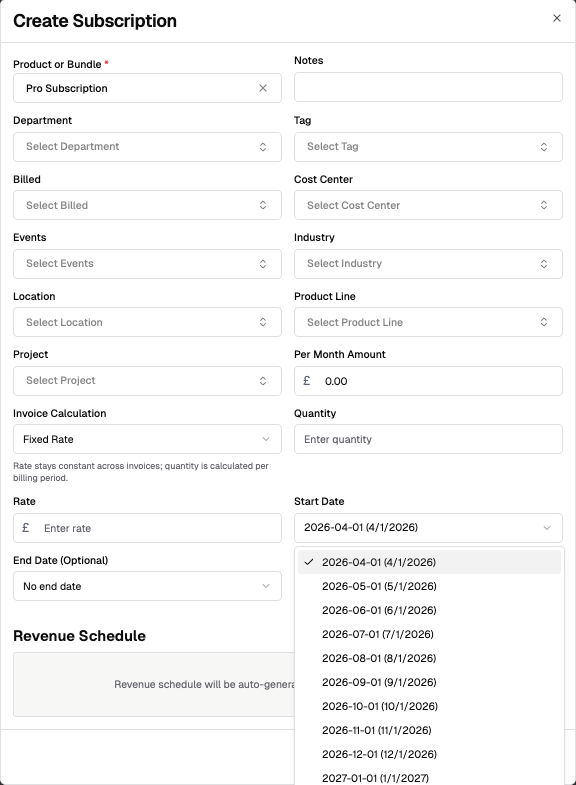
Go to the Subscriptions tab on the contract page and click Create Subscription.
Select the product or product bundle.
Enter the per-period amount. This label will match your billing frequency (e.g., "per month amount" for monthly contracts).
Quantity and Rate are optional fields. Use them if your pricing model calls for it.
Set the Start Date. This must be the first day of a billing period. The earliest option is the first day of the next billing period, or the contract start date if the contract hasn't started yet.
Set the End Date (optional). Leave it blank if the subscription should renew indefinitely, or set a specific end date if you know when it should stop.
Toggle Use Daily Accounting if applicable.
Click Save.
When a subscription is added, Campfire creates the corresponding revenue transactions (visible in the Revenue tab) and regenerates all future invoices to include the new line item (visible in the Invoices tab). Because changes only apply to future periods, this regeneration doesn't touch any finalized data.
Adding a One-Time Charge
To add a one-time fee to an Evergreen Contract, the recommended approach is to use a product classified as non-renewable. You can set this classification in the product's settings page. When a non-renewable product is added to an Evergreen Contract, it will not renew in future periods and its MRR is automatically set to zero, keeping your metrics clean.
If you're using a product bundle, the bundle is treated as non-renewable when all products in it are non-renewable.
Alternatively, you can set a subscription's end date so it only spans one billing period. This works functionally, but the charge will be included in MRR calculations, which may not be what you want.
Modifying a Subscription
There are two types of changes you can make to a subscription:
Metadata changes (tags, department, notes): Click Edit on the Subscriptions tab. These changes don't affect billing or revenue.
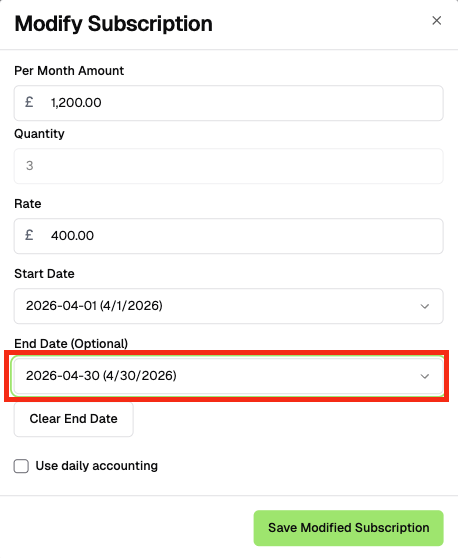
Financial changes (amount, dates, other fields): Click Modify on the Subscriptions tab. However, once a subscription's billing has begun, all fields except End Date are locked. This is part of the core principle of protecting past period data.
To effectively change the price or other locked fields on an active subscription:
Set the end date of the existing subscription to the last day of the current billing period.
Create a new subscription with the same product, starting on the first day of the next billing period, with the updated values.
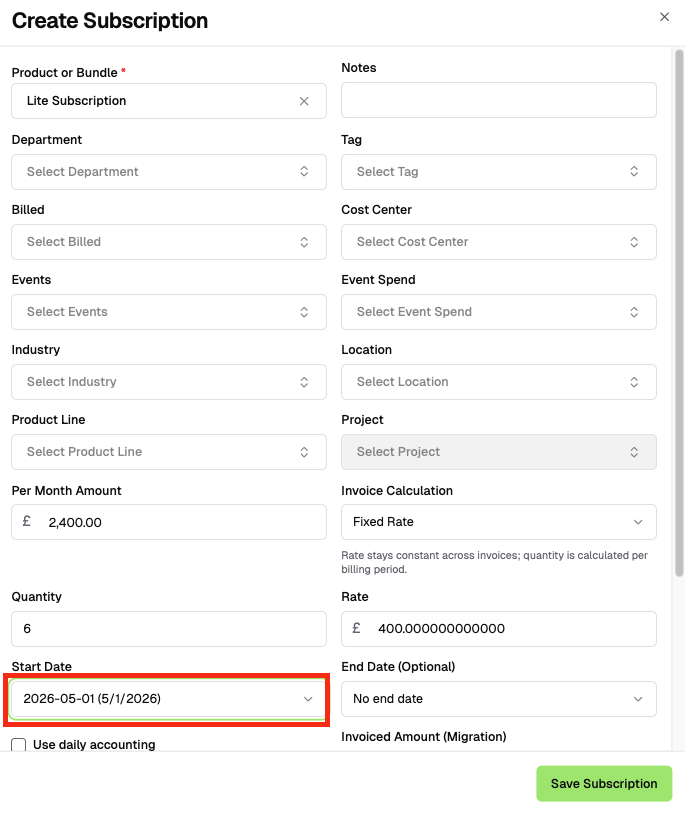
This gives you a clean cutover without rewriting any historical data.
Deleting a Subscription
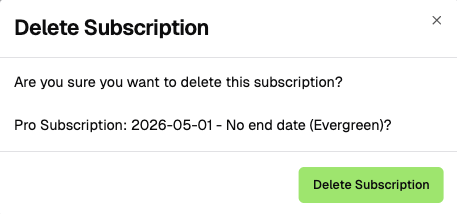
If the subscription hasn't started yet (its start date is in a future billing period), click the Delete button on the Subscriptions tab to remove it entirely.
If the subscription has already started, it cannot be deleted. Instead, set its end date to the last day of the current billing period. This stops it from generating any further invoices or revenue beyond the current period.
Non-Renewable Products and One-Time Charges
By default, every subscription on an Evergreen Contract renews each billing period. If you need to bill a one-time fee (an implementation charge, a setup fee, a one-time service, etc.), you'll want to make the product non-renewable.
How to Set a Product as Non-Renewable
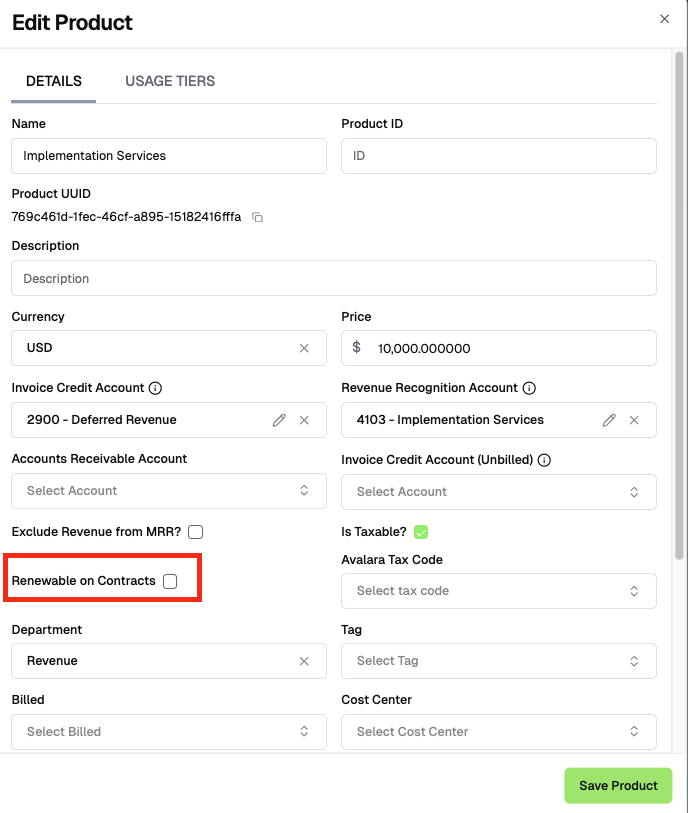
Open the product you want to make non-renewable (Settings > Products > select the product). On the Details tab, uncheck the Renewable on Contracts checkbox and click Save Product. When this box is unchecked, two things happen differently on Evergreen Contracts:
The product is billed for one period only and does not renew in future billing periods.
The product's MRR is automatically set to zero, so one-time charges don't inflate your recurring revenue metrics.
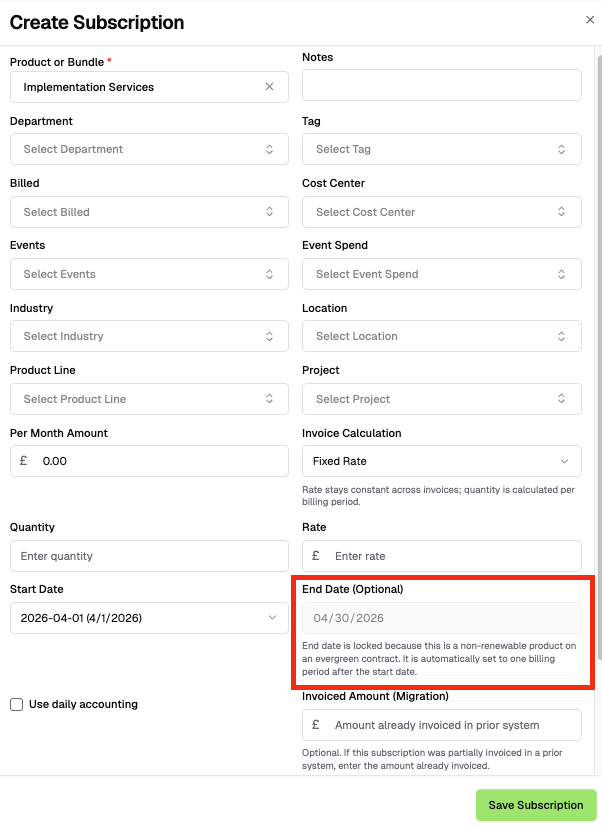
When you add a non-renewable product as a subscription on an Evergreen Contract, the End Date field is locked. Campfire automatically sets it to one billing period after the start date, so there's nothing to configure on the subscription side.
Pricing Bundles
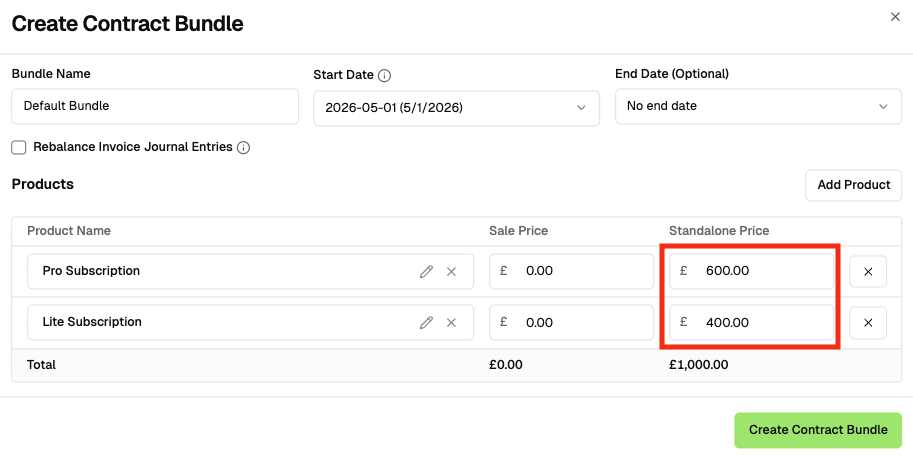
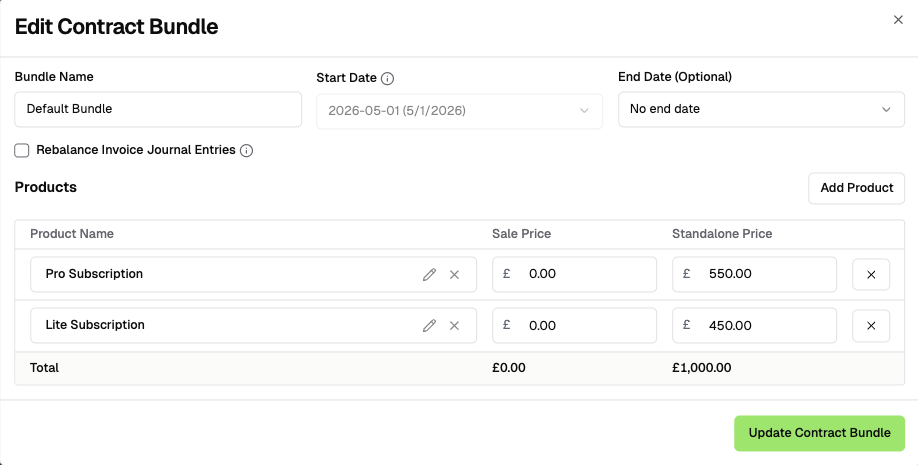
Pricing Bundles let you apply a fixed total price to a group of products on an Evergreen Contract, overriding the individual subscription amounts for invoicing and revenue purposes.
Creating a Pricing Bundle
Navigate to the Revenue tab on the contract page and click Create Pricing Bundle.
Set the Start Date. This must be the first day of a billing period. It can be any period from the current period onward.
Set the End Date (optional). Leave this blank to apply the bundle to all future periods indefinitely, or set a specific end date if the pricing is only valid for a fixed window.
Enter the bundle amount and select the products to include.
Modifying a Pricing Bundle
If the current date is within or before the bundle's first applied billing period, you can click Edit to make changes directly.
Once the bundle has been applied to a past billing period, the amount and most fields are locked. To make changes at that point, set the end date of the current bundle to the end of the current period and create a new bundle starting on the first day of the next period with the updated configuration.
Deleting a Pricing Bundle
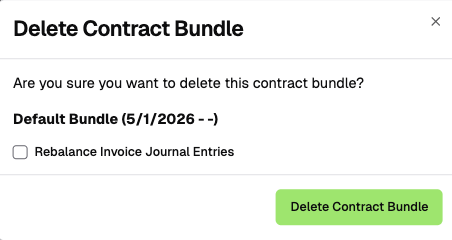
If the bundle's start date is in the current billing period or later, click Delete to remove it. If it started in a past period, it can't be deleted outright. Set its end date to the end of the current billing period to retire it.
Terminating an Evergreen Contract
When you're ready to end an Evergreen Contract:
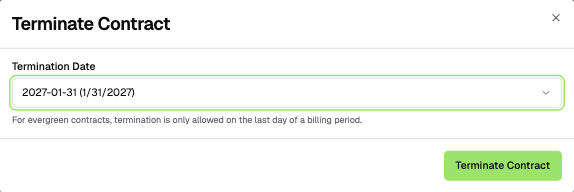
Go to Actions > Terminate on the contract page.
Set the termination date. This must be the last day of a billing period, and the period must be the current period or later.
Click Confirm.
Once the termination date is set, Campfire generates revenue transactions and invoices through that date. Any data that was previously generated past the termination date is automatically removed. The contract stops renewing and no further invoices or revenue transactions are created beyond the termination date.
Editing Past Data
Evergreen Contracts are designed to protect past billing periods from accidental changes. Common actions in the UI only affect future periods. If you need to correct a past invoice or revenue transaction, you can do so by editing the individual record manually. This should be done sparingly and ideally reviewed thoroughly.