How to Dispose a Fixed Asset in Campfire
Last updated: June 29, 2026
Campfire’s Help Center has moved. As of June 2026, this article is no longer being updated. Find the latest version in our new Help Center: view here.
Overview
When an asset is sold, retired, or written off, it needs to be formally disposed of in Campfire. Disposing an asset removes it from your active fixed asset register, cancels any remaining depreciation, and records the correct gain or loss on disposal in your GL. This guide walks through how to complete that process.
Before You Begin
Before disposing a fixed asset, confirm that a Gain/Loss on Disposal account is configured in your Chart of Accounts. Without this, Campfire will post the disposal entry to an Uncategorized account.
To verify:
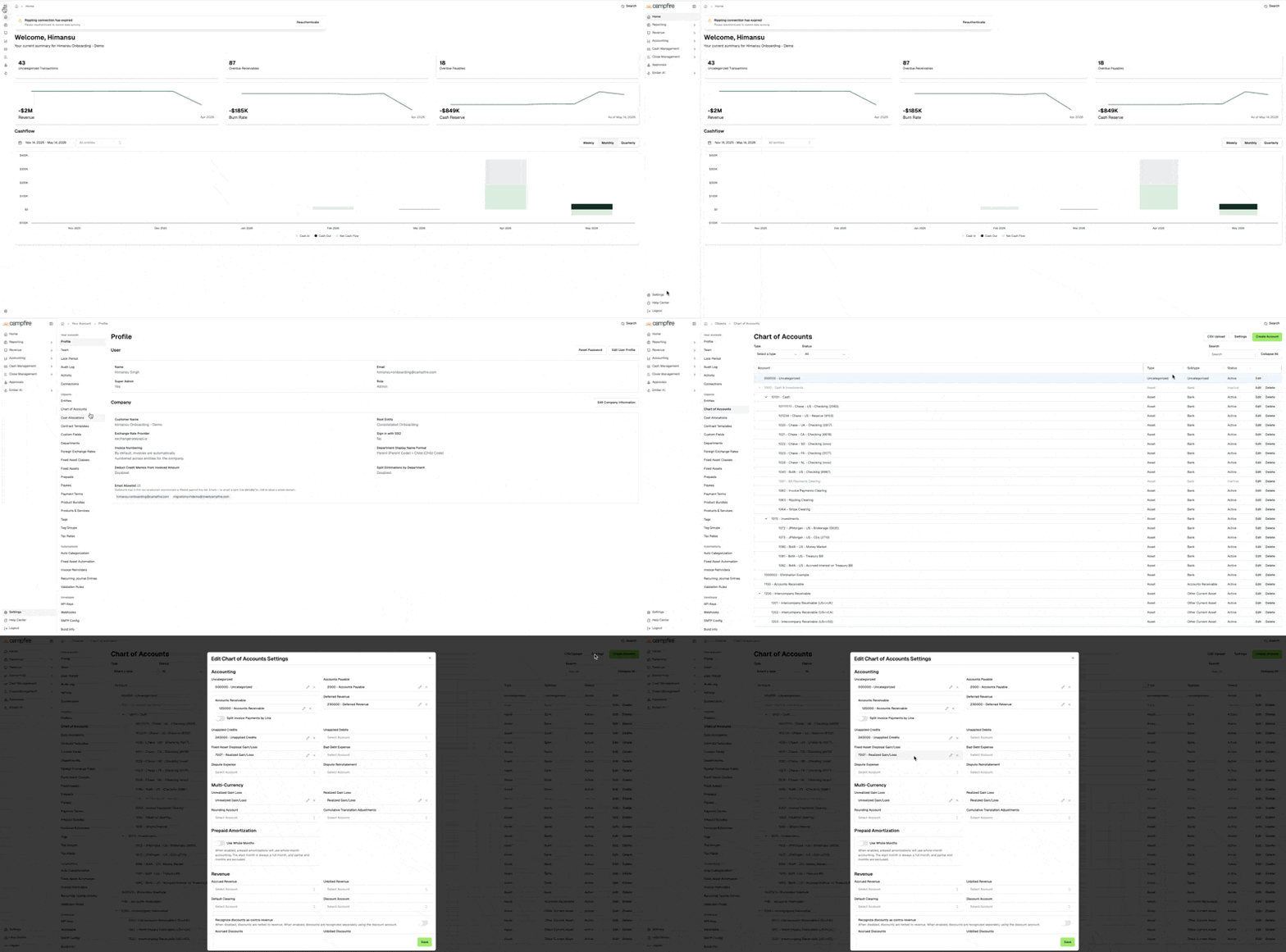
Go to Settings → Chart of Accounts →Settings
Under Fixed Asset Disposal Gain/Loss, confirm an appropriate P&L account is selected (e.g., "Gain/Loss on Disposal of Assets")
Step 1 — Navigate to the Fixed Asset
Go to Accounting → Fixed Assets and open the asset you want to dispose.
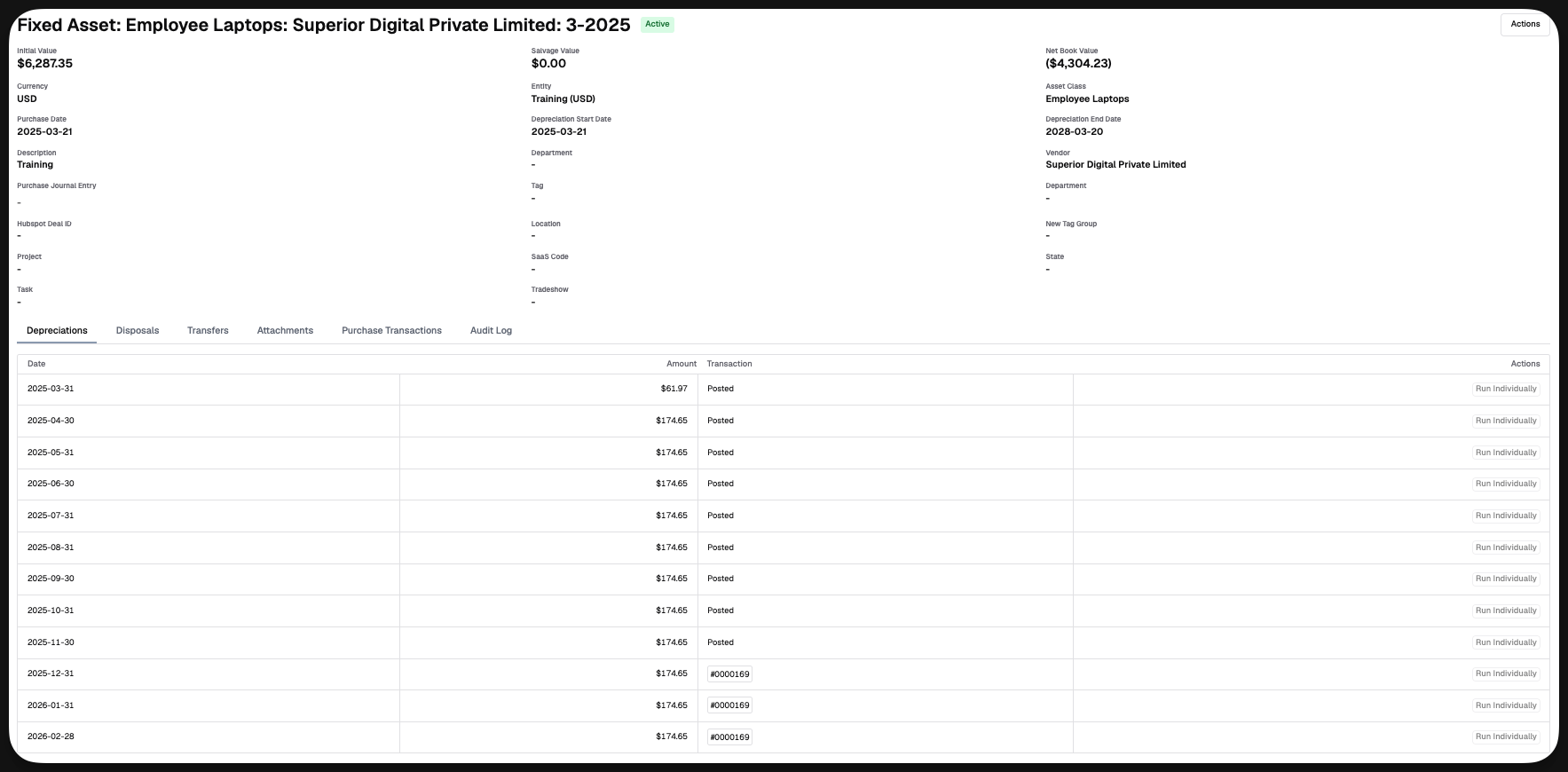
Step 2 — Dispose the Fixed Asset
On the asset detail page, click Actions → Dispose and fill the following fields:
Field | Description |
|---|---|
Disposal Date | The date the asset left service. Defaults to today. Campfire will cancel all unposted future depreciation on or after this date. |
Net Proceeds Amount | The cash received from the sale or retirement. Enter |
Disposal Percentage | The portion of the asset being disposed, from 1–100. Defaults to |
Click Dispose Fixed Asset to submit.
Step 4 — Link or Create the Disposal Transaction
After submitting, Campfire routes you to the Link or Create Fixed Asset Disposal page. You have two options:
Option A — Link an Existing Transaction Campfire pre-filters your transaction list to a ±3-day window around the disposal date. Find the matching bank transaction and click it to link it to the disposal.
Option B — Create a New Journal Entry Click Create New Transaction. Campfire pre-populates the journal entry with the correct accounting lines:
Line | Account | Direction |
|---|---|---|
Remove gross cost | Fixed Asset Account | Credit |
Remove accumulated depreciation | Accumulated Depreciation Account | Debit |
Record gain or loss | Disposal Gain/Loss Account (Set at Chart of Accounts setting) | Debit (loss) / Credit (gain) |
Record cash received | Proceeds/Cash Account (Categorize to Cash/Bank Account) | Debit |
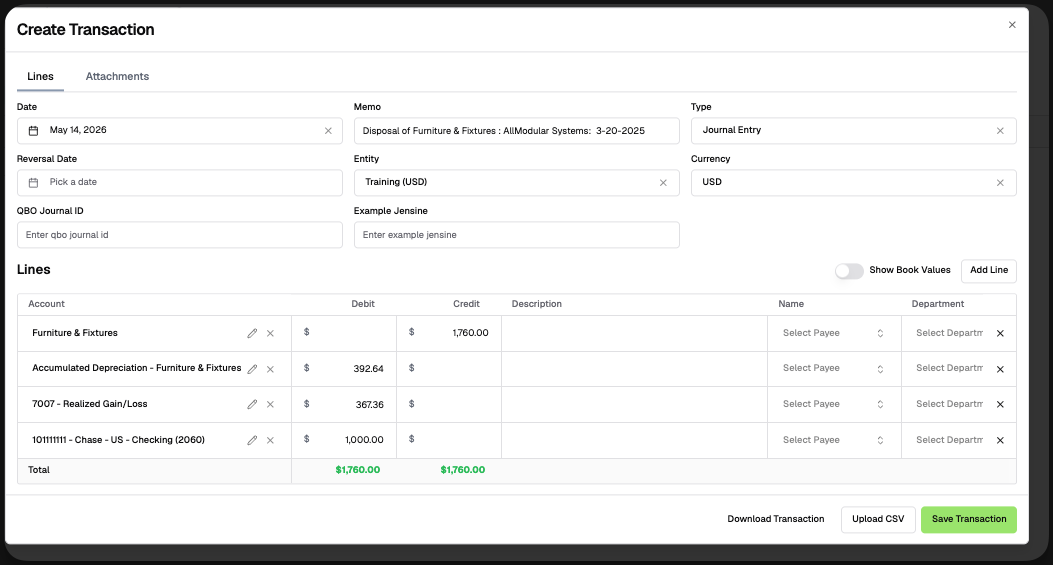
Review, adjust if needed, and save.
Step 5 — Confirm Disposal
Once the transaction is linked or created, the disposal is complete. Return to the asset detail page — a fully disposed asset (100%) will show a status of Disposed. Partial disposals reduce the net book value proportionally and the asset remains active.