How to Edit a Fixed Asset Depreciation Schedule
Last updated: June 29, 2026
Campfire’s Help Center has moved. As of June 2026, this article is no longer being updated. Find the latest version in our new Help Center: view here.
Overview
After a fixed asset is created in Campfire, you may need to adjust its depreciation schedule — whether to correct an error, reflect a change in useful life, or manually fine-tune individual periods. This guide walks through how to edit an asset's schedule, either by triggering a full regeneration or by manually adjusting individual entries.
Before You Begin
Keep in mind the following before making any edits:
Posted entries are locked — any depreciation period that has already been posted to the GL cannot be edited. Only future, unposted entries are editable.
Full regeneration preserves posted history — if you change core depreciation fields, Campfire recalculates only from the last posted entry forward. Your historical posted entries remain untouched.
The schedule must always balance — the sum of all entries must equal the depreciable basis (Initial Value − Salvage Value) before you can save.
Step 1 — Navigate to the Fixed Asset
Go to Accounting → Fixed Assets and open the asset whose schedule you want to edit.
Step 2 — Choose Your Edit Method
Option A — Full Schedule Regeneration (Recommended)
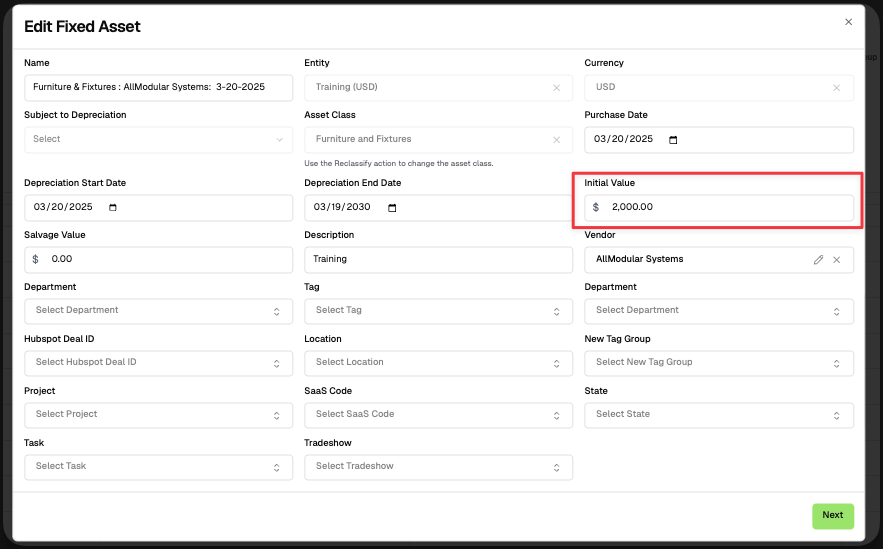
Use this option if you need to change the core depreciation parameters. Update one or more of the following fields on the Details step, then click Save Fixed Asset:
Field | What It Controls |
|---|---|
Initial Value | The gross cost of the asset. Changes the depreciable basis. |
Salvage Value | The expected residual value at end of useful life. Depreciable basis = Initial Value − Salvage Value. |
Depreciation Start Date | When depreciation begins. Campfire regenerates only from the last posted entry forward. |
Depreciation End Date | When the asset is fully depreciated. Campfire recalculates a straight-line schedule to this date. |
Campfire will automatically recalculate the schedule for all unposted entries when you click Save Fixed Asset.
Option B — Manual Edit of Individual Entries
Use this option if the core depreciation fields are correct and you only need to adjust specific rows.
After editing the details of the fixed asset (Initial value, Salvage Value, etc), click Next
Review and Edit the Schedule
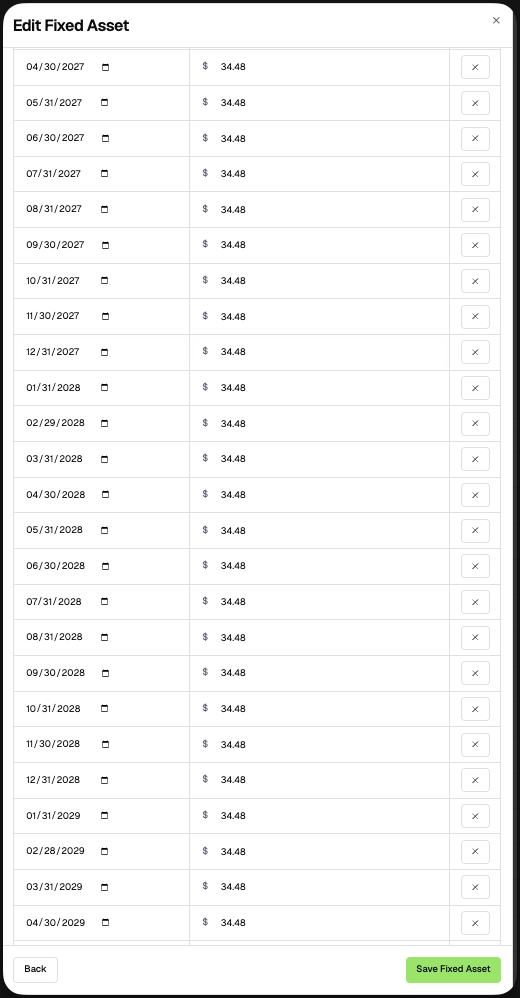
On the Schedule step, you will see a table with one row per depreciation period.
For each unposted row you can edit:
Field | Description |
|---|---|
Posting Date | The date the depreciation journal entry will post (YYYY-MM-DD format) |
Amount | The depreciation amount for that period |
⚠ Note: Rows tied to already-posted journal entries are grayed out and cannot be edited.
Validate the Schedule
Before saving, Campfire runs two checks:
1. Total must equal the depreciable basis The sum of all schedule entries must match Initial Value − Salvage Value exactly. The table footer shows a running total — it turns green when balanced and red when off. You cannot save until this is resolved.
2. End date alignment The last entry's posting date should match the asset's Depreciation End Date. If they don't match, Campfire will show a warning but will allow you to confirm and save anyway.
Save Fixed Asset
Click Save Fixed Asset to apply the updated schedule.
💡 Note: If you have write permission, the schedule saves immediately. If you only have draft permission, Campfire creates a draft for approval instead.