Custom Reports
Last updated: June 29, 2026
Campfire’s Help Center has moved. As of June 2026, this article is no longer being updated. Visit our new Help Center: view here.
Custom Reports let you build pivot-table style reports directly on top of your Campfire data without having the need to export spreadsheets. You choose the rows, columns, and values, layer on filters, and save the result as a named report your whole team can access.
Creating a Report
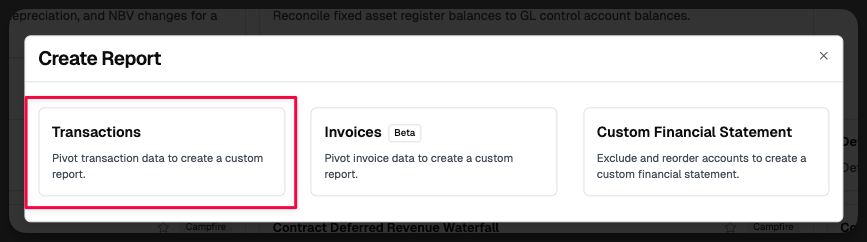
Go to Reporting → Reports→Create New Report → Transactions
Step 1 — Configure the Pivot
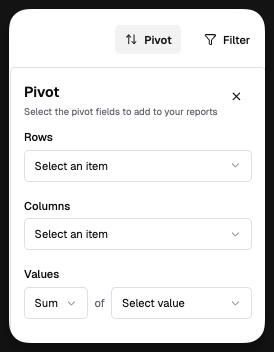
Click Pivot to open the pivot configuration panel. There are three things to configure: Rows, Columns, and Values.
Rows
Rows define how your data is grouped — the left-most hierarchy in the report. You can add multiple row levels and drag to reorder them.
Transaction Reports — available row fields:
Field | Description |
Accounts | GL account |
Payees | Vendor or payee name |
Department | Department assigned to the transaction |
Tag | Individual tags |
Entity | Legal entity |
Currency | Transaction currency |
Journal Type | Type of journal entry |
Date | Full date |
Date (Month) | Grouped by month |
Date (Year) | Grouped by year |
Tag Group | Any tag groups configured in your account |
Custom Fields | Any custom fields defined on transactions |
Columns
Columns pivot the report — creating a separate column for each unique value of the field you select. You can pick any field from the same list as Rows (as long as it isn't already used as a row). Drag to reorder.
Values
Values define what gets aggregated in each cell. Choose an aggregation function and a value field, then add as many value rows as you need.
Field | Description |
Debit | Debit amount in root currency |
Credit | Credit amount in root currency |
Debit (Book) | Debit in the entity's functional currency |
Credit (Book) | Credit in the entity's functional currency |
Debit (Transaction) | Debit in the original transaction currency |
Credit (Transaction) | Credit in the original transaction currency |
Net Amount (Debit − Credit) | Net debit position |
Net Amount (Credit − Debit) | Net credit position |
Count | Number of transactions |
Step 2 — Apply Filters
Click Filter to open the filter panel. Filters narrow which records are included in the report. Applied filters appear as removable chips in the panel, and a badge on the Filter button shows the count of active filters.
Transaction Reports — available filters:
Filter | Description |
Account | Specific GL accounts |
Currency | Transaction currency |
Payees | Vendor or payee name |
Department | Department assigned to the transaction |
Journal Type | Type of journal entry |
Tag | Individual tags across groups |
Tag Groups | Filter by one or more tag groups |
Account Type | High-level account type |
Account Subtype | More granular account classification |
Account Cashflow Classification | Operating, Investing, or Financing |
Tag Group | Each configured tag group gets its own filter |
Step 3 — Set Date Range and Entity
Date Range and Entity are set in the top controls bar and are saved with the report so they reload correctly the next time you open it.
Date Range — the time window for the report
Entity — filter to a single entity, or leave as "All"
Saving a Report
Once your pivot and filters are configured, click Save Report and give it a name. Saved reports are available to your entire organization under the Custom Reports tab.
You can also:
Update an existing report to overwrite it with the current configuration
Rename a report from the ⋮ menu
Delete a report from the ⋮ menu (permanent — there is no recovery)
Note: The Save Report button only becomes active once at least one Pivot field is configured.
Drilling Into Transactions
Cells in saved pivot reports are clickable:
Transaction Reports — clicking a cell opens the Transactions page pre-filtered to that cell's groupings, filters, and date range, so you can see the underlying journal entries directly
The totals row pinned at the bottom of the grid is not drillable — clicking it does nothing.
Exporting to CSV
Click Download at any time to export the current report view — including all active pivot settings, filters, date range, and entity — as a CSV file.
Finding and Managing Saved Reports
All saved reports (Transaction and Invoice) live at the Custom tab under Reports. From there you can open, edit, or delete any saved report.