Navan Integration
Last updated: June 29, 2026
Campfire’s Help Center has moved. As of June 2026, this article is no longer being updated. Find the latest version in our new Help Center: view here.
Campfire's Navan integration automatically pulls your approved Navan expenses and corporate-card transactions into Campfire as bills and journal entries — no manual exports or CSV uploads needed.
Before you start
You'll need a few things in place on the Navan side before connecting.
Required role: You must have the Navan Expense Admin role.
Steps in Navan:
Go to Settings → Integrations → Navan API and create a set of API credentials.
Copy your Client ID and Client Secret. The secret is shown only once, so save it somewhere secure.
Note your Navan region (US or EU) — you'll need this when connecting in Campfire, and it must match your Navan account.
Connect Navan in Campfire
You'll need the Manage Connections permission in Campfire.
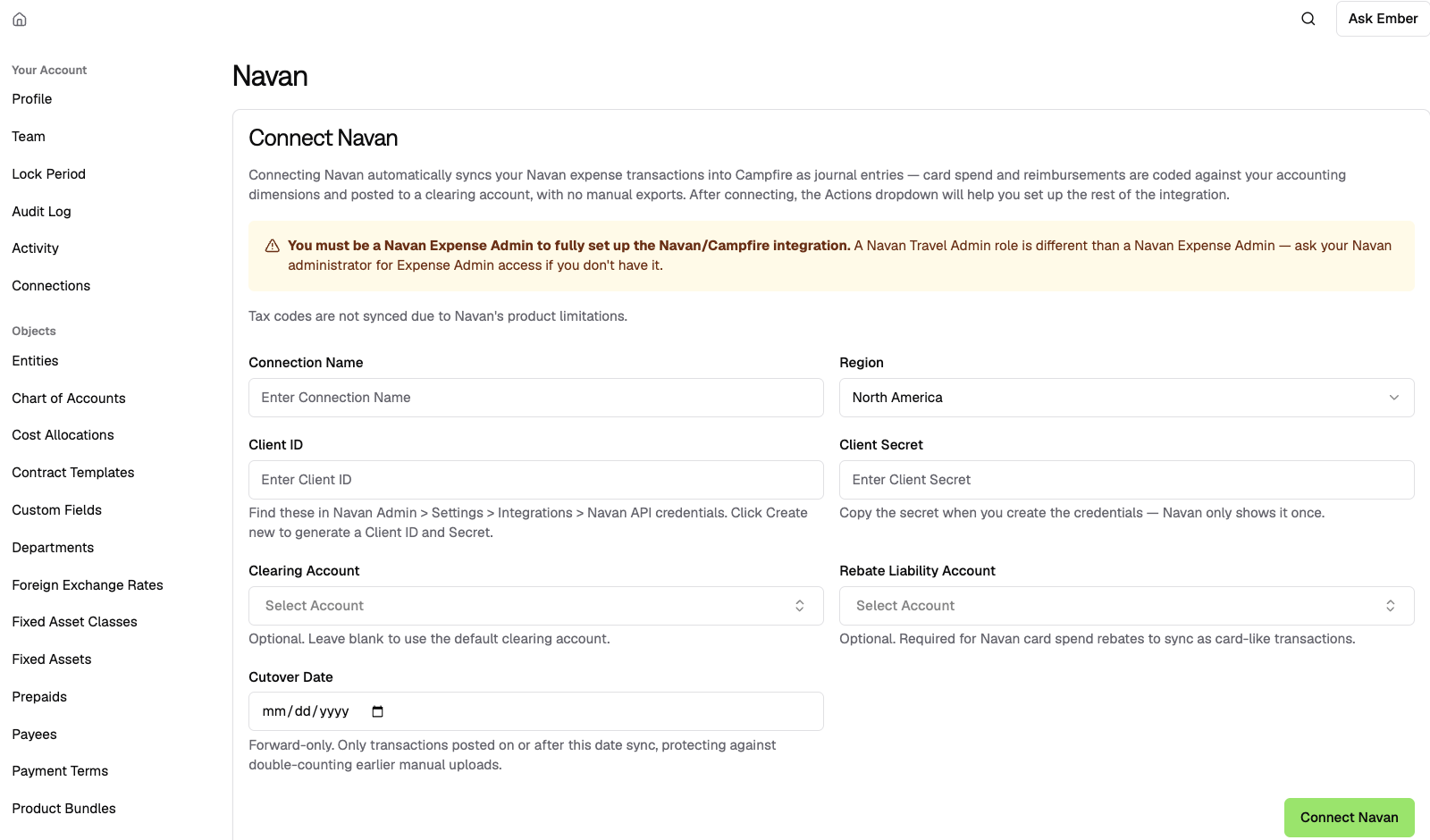
Go to Settings → Connections → Navan (
app.meetcampfire.com/v2/settings/navan).Fill in the following fields:
Field
What to enter
Connection Name
Enter a connection name
Client ID
From your Navan API credentials
Client Secret
From your Navan API credentials
Region
North America or Europe — this is locked once saved, so choose carefully
Clearing Account (optional)
The liability/clearing account that expense bills offset to. If left blank, Campfire uses your default clearing account.
Rebate Liability Account (optional)
The liability account that holds Navan card-spend rebates. With an account selected, rebates import as bank-feed transactions that debit this account and credit the original expense.
Cutover Date (optional, recommended)
Only transactions on or after this date will sync.
Click Connect Navan. Campfire validates your credentials and activates the connection.
Align your coding
To make sure Navan expenses land in the right accounts, sync your chart of accounts and departments between the two systems.
Download GL Codes CSV from the connection's Actions menu. Load these GL codes into Navan so coders select real Campfire accounts when coding expenses.
Download Departments CSV the same way to sync department names.
Any Navan GL code that doesn't match a Campfire account will land in Uncategorized, with a note on the line so you can recode it. It won't block the sync.
How the sync works
Campfire polls Navan on a schedule and brings in only transactions that Navan has marked Ready to Export — meaning they've already been approved and coded in Navan.
Transaction type | How it posts in Campfire |
|---|---|
Corporate card spend | Bank transaction + journal entry against a "Navan Card" liability account (auto-created). No bill is created. |
Out-of-pocket expenses, reimbursements, fees, and adjustments | AP bill + balanced journal entry, offsetting your clearing account. |
Card-spend rebates (Navan cashback) | Bank-feed transaction crediting the original expense and debiting your Rebate Liability Account. This requires an account to be set, otherwise rebates aren't imported. No bill is created. |
Receipts are attached automatically to the resulting bill or entry. Entity and department are matched by name, and closed periods are respected.
Things to know
4-6 hour lag: Navan can take up to 6 hours to expose new activity through its API. The most recent transactions may not appear immediately, even after a manual sync. They'll be picked up on a later sync.
Cutover date is final: Transactions before your cutover date will never sync, even if they're edited later in Navan.
Tax codes don't sync: This is a limitation of the Navan API.
Re-authentication: If Navan rejects your credentials, the connection shows a Reconnect needed banner and pauses syncing until you rotate the secret and reconnect.
Deleting the connection: Removing the connection does not delete bills or journal entries that have already been synced into Campfire.
Managing credentials: Your region and API credentials can only be managed by a Navan Expense Admin.
Rebates: Rebates sync only once Navan marks them Ready to Export; they respect your cutover date and closed periods; and re-syncs won't create duplicates.