Accruals
Last updated: June 29, 2026
Campfire’s Help Center has moved. As of June 2026, this article is no longer being updated. Find the latest version in our new Help Center: view here.
Using the Accrual Module
Campfire's accrual workspace gives you a permanent place to prepare, review, and post your monthly accruals. Ember AI handles the heavy lifting — scanning your historical bills, payments, and journal entries to propose what to accrue and estimate each line — so you can focus on review and approval.
This guide walks you through the four parts of the workflow: discovering your accruals, preparing the journal with Ember, posting to the GL, and reusing your setup next month.
Discovering Your Accruals
The first time you open the workspace on a new entity, Ember can build your starting set of accruals from your historical data.
How to Run Discovery
Open the Accruals module from Close Management.
Select the entity and period.
Click Create with Ember AI.
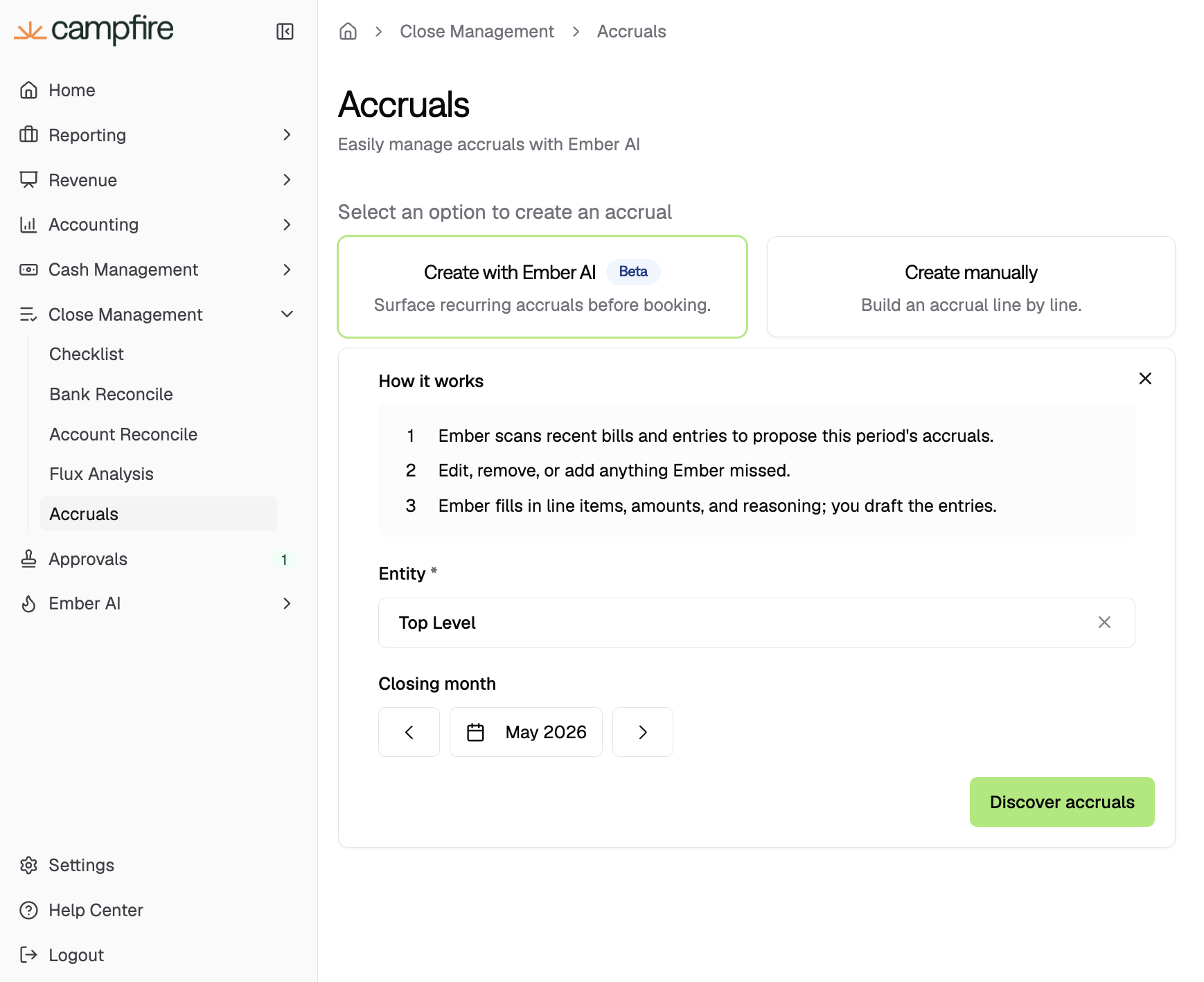
Ember scans your historical bills, payments, and journal entries to propose accrual groups — things like recurring SaaS spend, legal retainers, or utilities. Discovery runs in the background and typically takes a few minutes. When it finishes, you'll see groups laid out with line-level vendor detail.
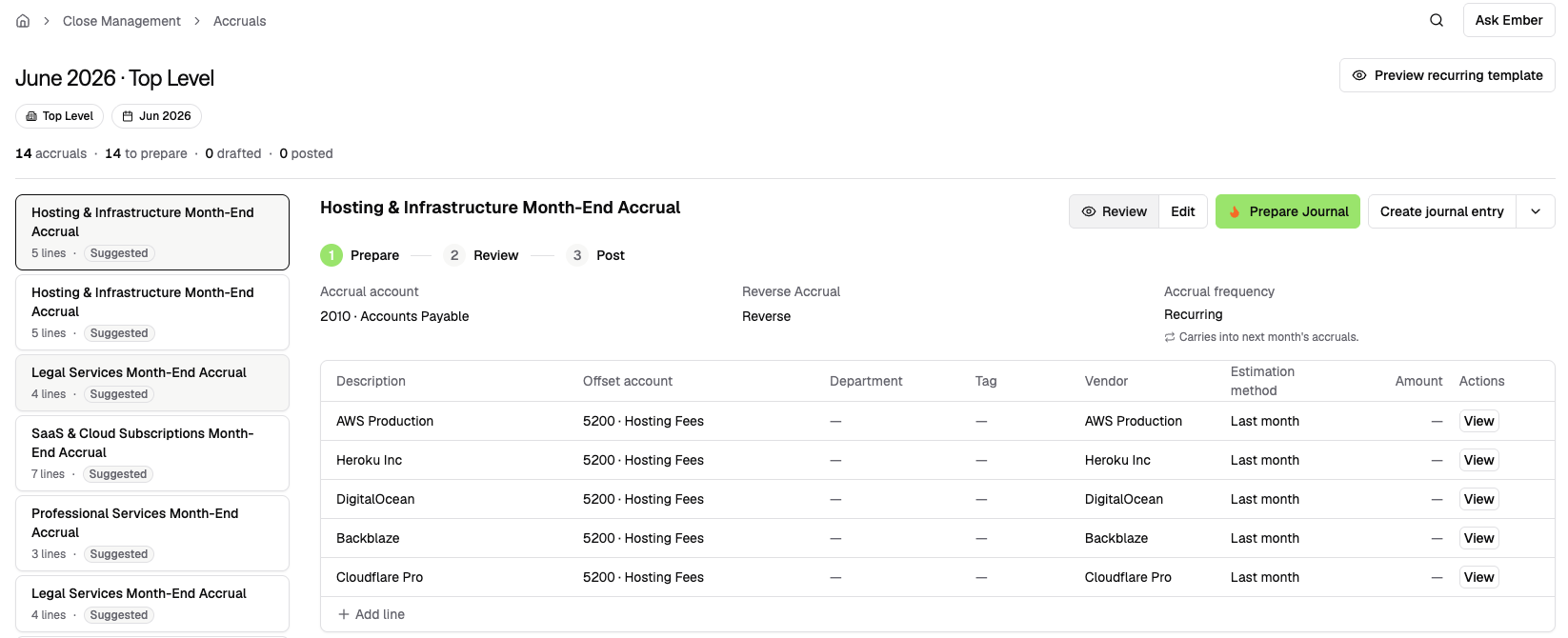
Preparing the Journal
Each accrual group becomes one journal entry. Use Prepare Journal to let Ember estimate the lines for you.
How to Prepare a Group
Click into any accrual group.
Click Prepare Journal at the top right.
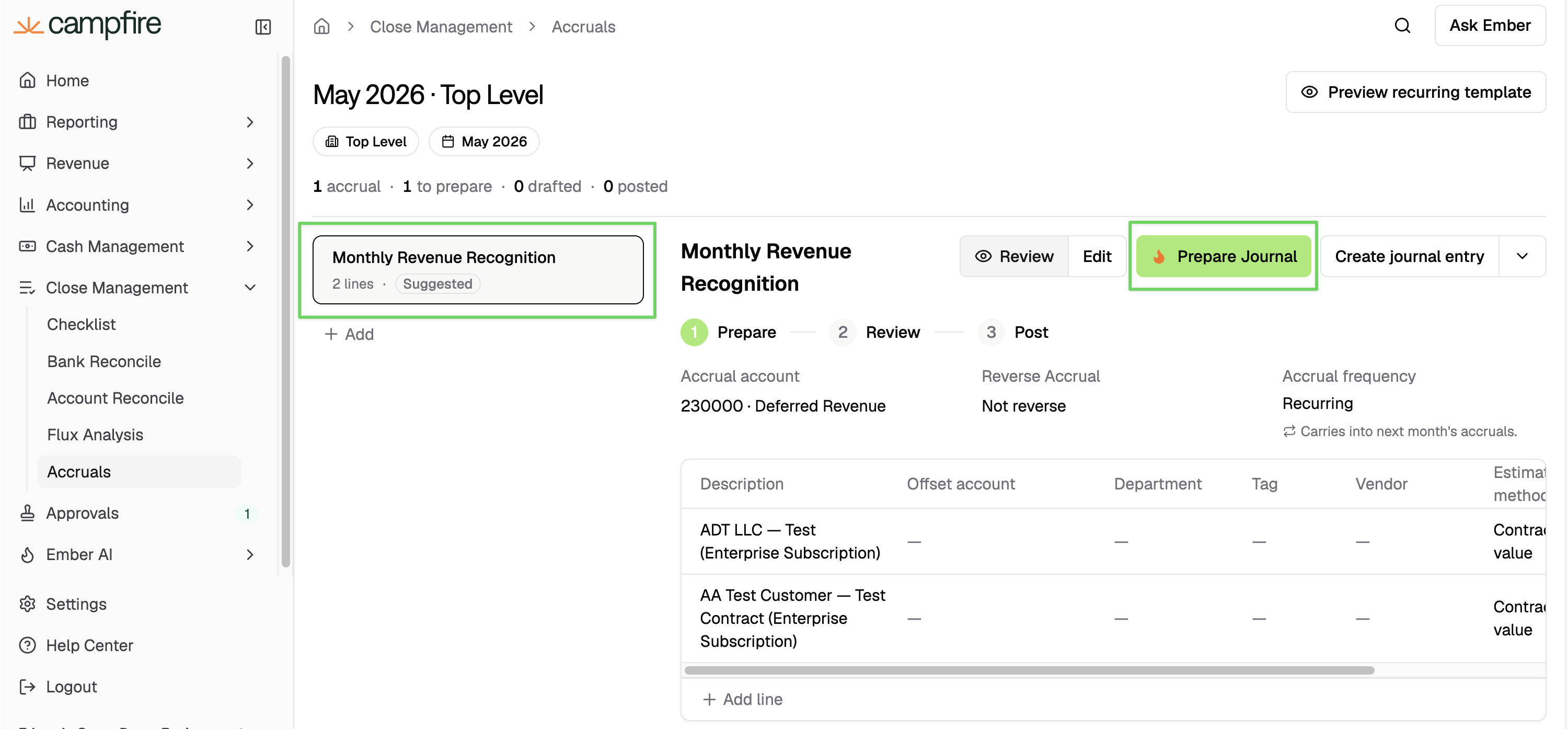
Ember walks through your trailing bills and payments to estimate each line's amount and pick the most likely offset account. Lines populate as it works.
Reviewing Ember's Reasoning
On any line, open the Ember reasoning panel to see exactly which transactions Ember pulled and how it landed on the proposed amount.
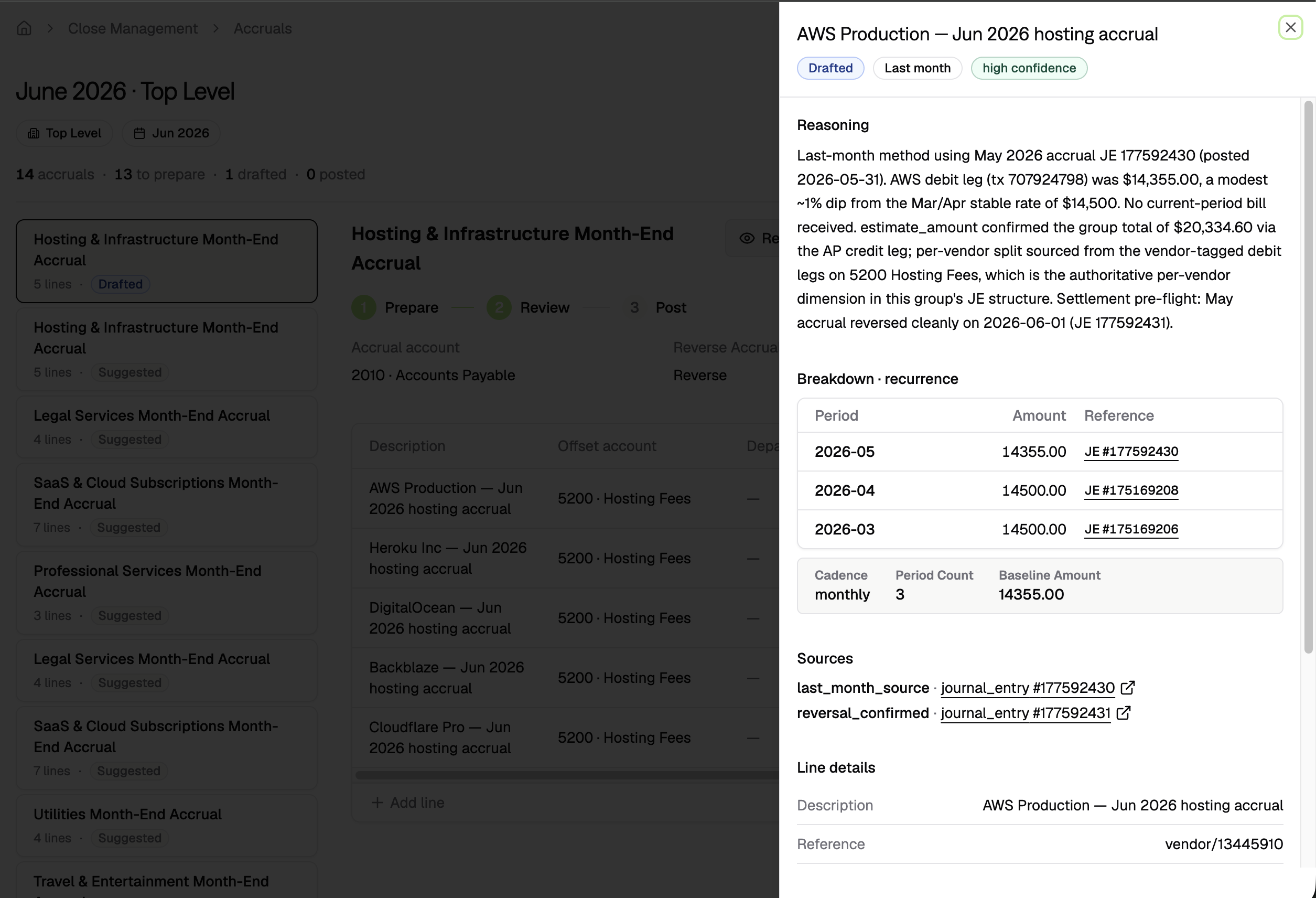
Making Adjustments
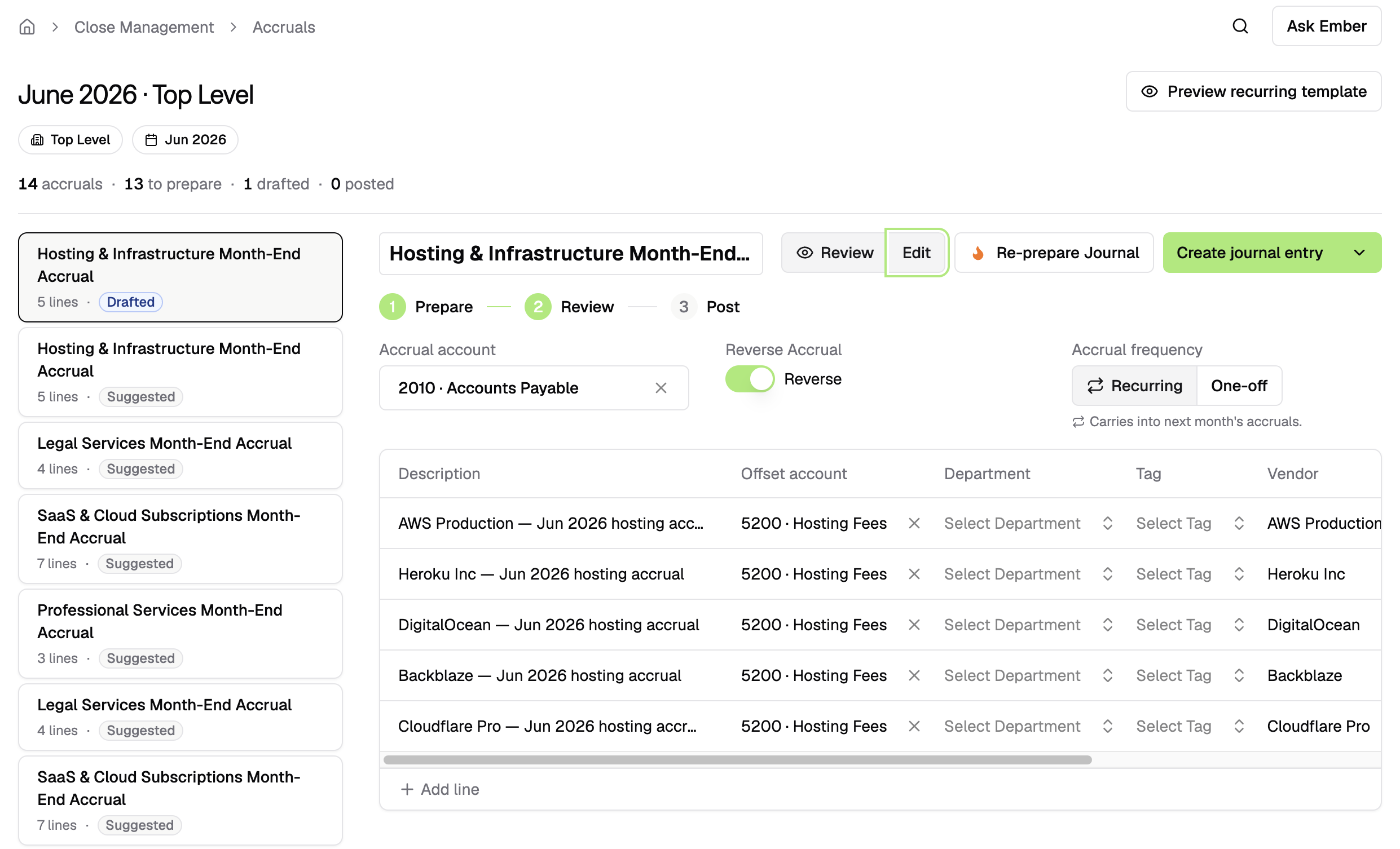
Anything Ember proposes is editable. Switch a line into Edit mode to override the description, amount, account, vendor, or department.
Setting Up Auto-Reversal
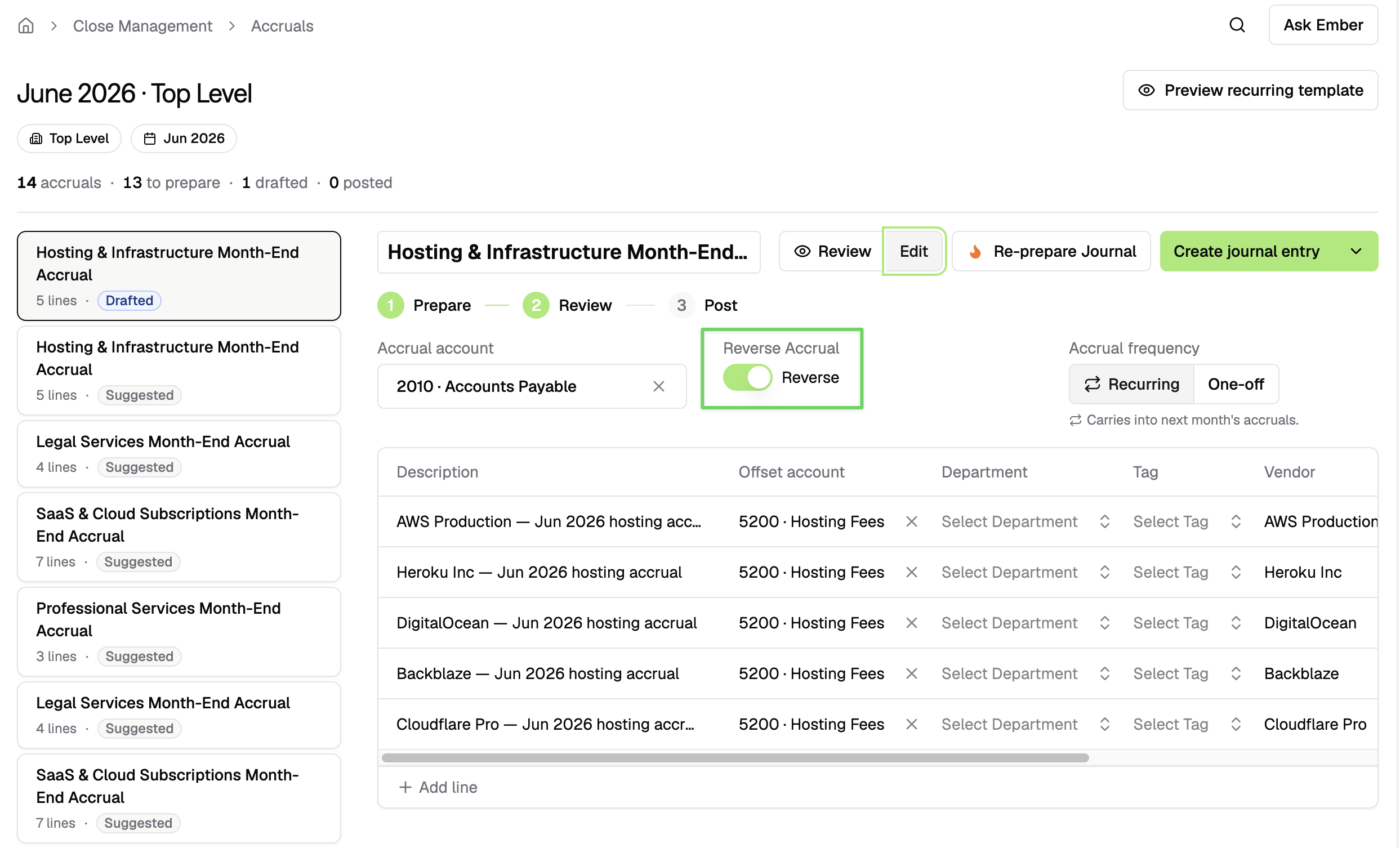
If you want the journal entry to reverse on the first day of the next period, toggle Reverse Accrual on before posting.
Posting as a Journal Entry
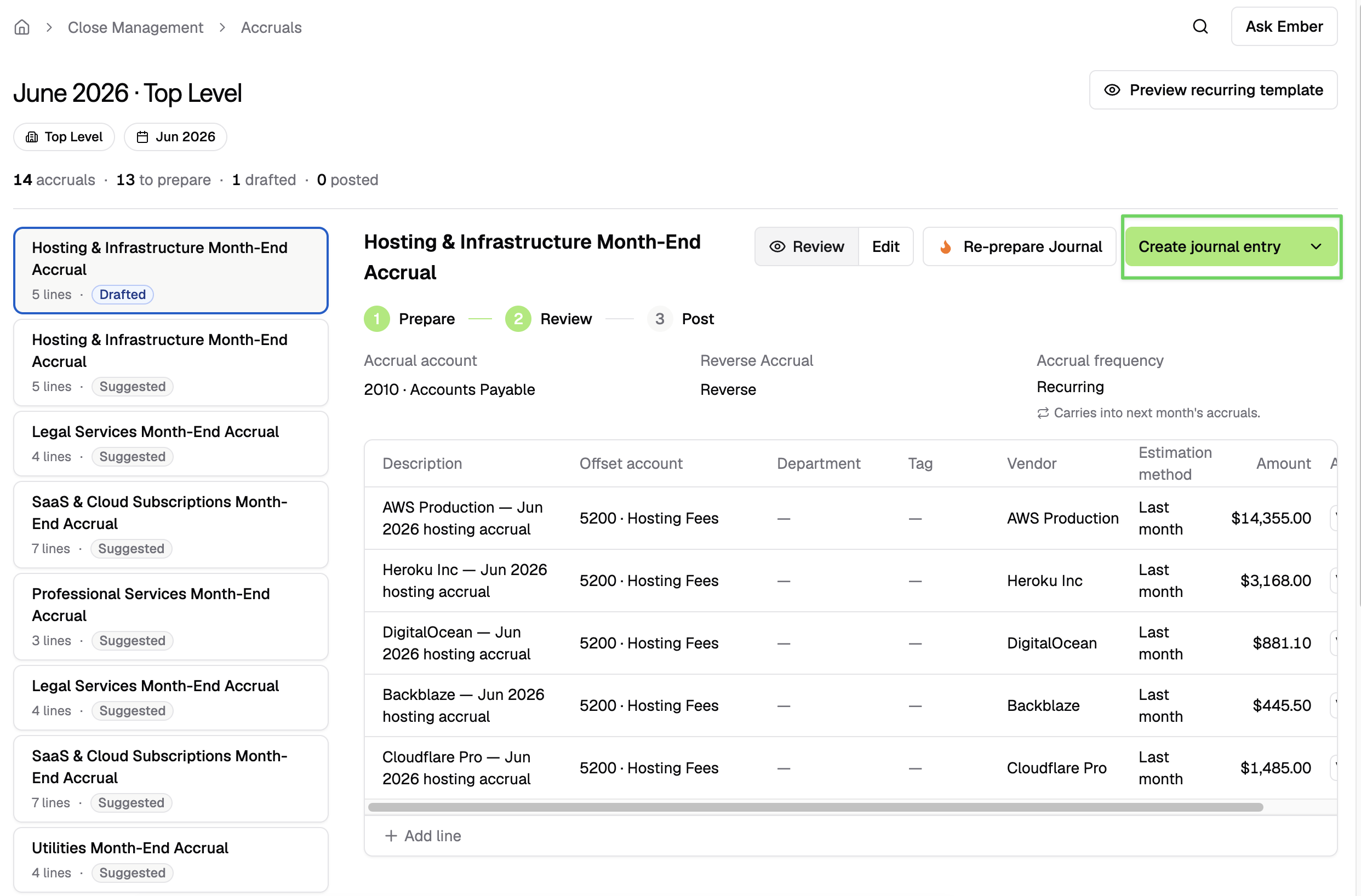
Once the group looks right, post it to create the journal entry in your general ledger.
How to Post
Click Review to verify the lines, or press Edit to make updates.
Click Create journal entry.
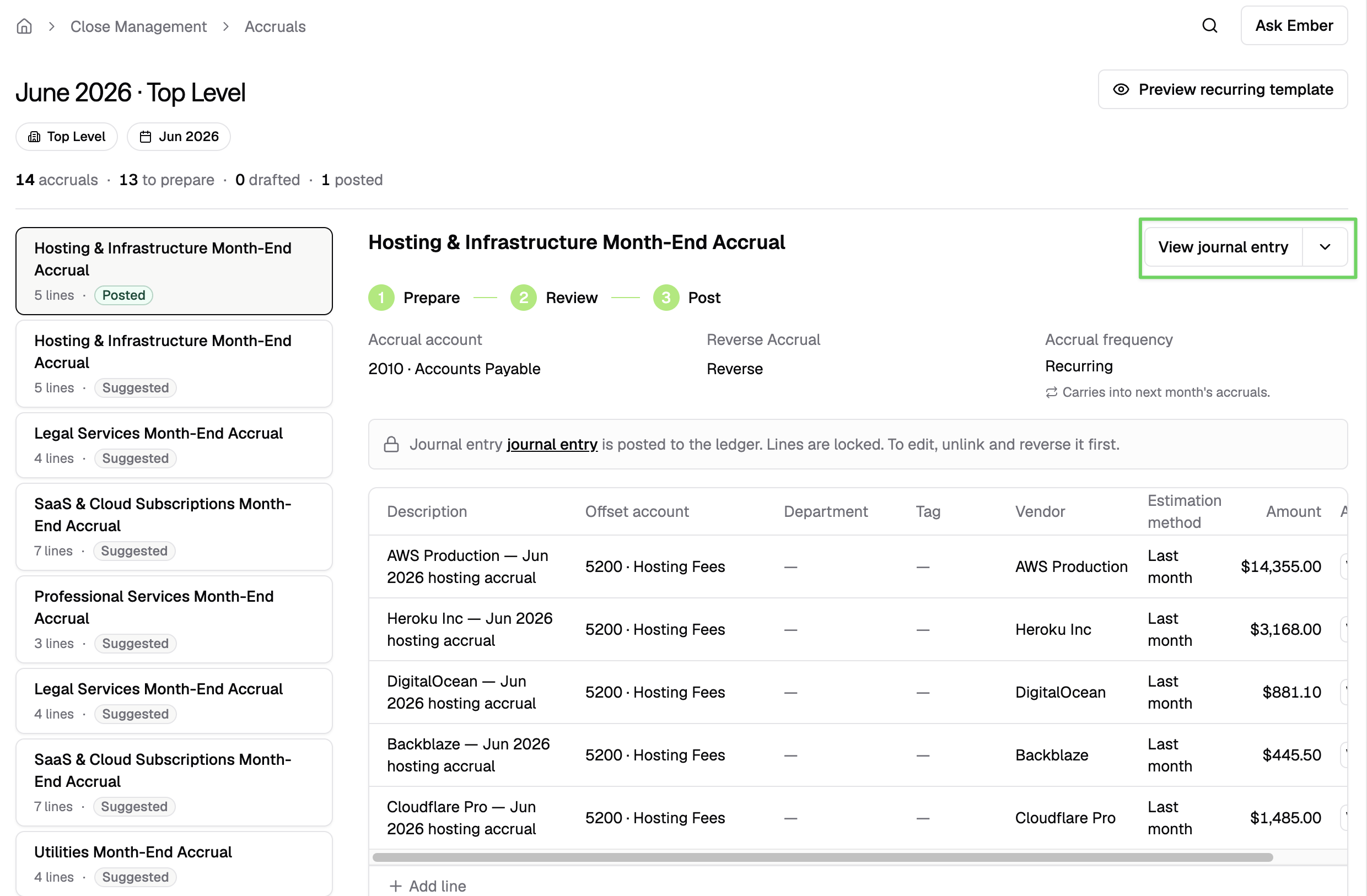
Each accrual group maps to exactly one journal entry. The accruals stay in the workspace as a permanent record linked to the posted JE. You can always trace what was accrued and why.
Reusing Accruals Next Month
Once you save a group to your accrual template, the recurring work becomes a one-time setup.
How to Save a Group to the Template
On any group, click Edit then toggle the Recurring switch on. The group is now part of your rolling template.
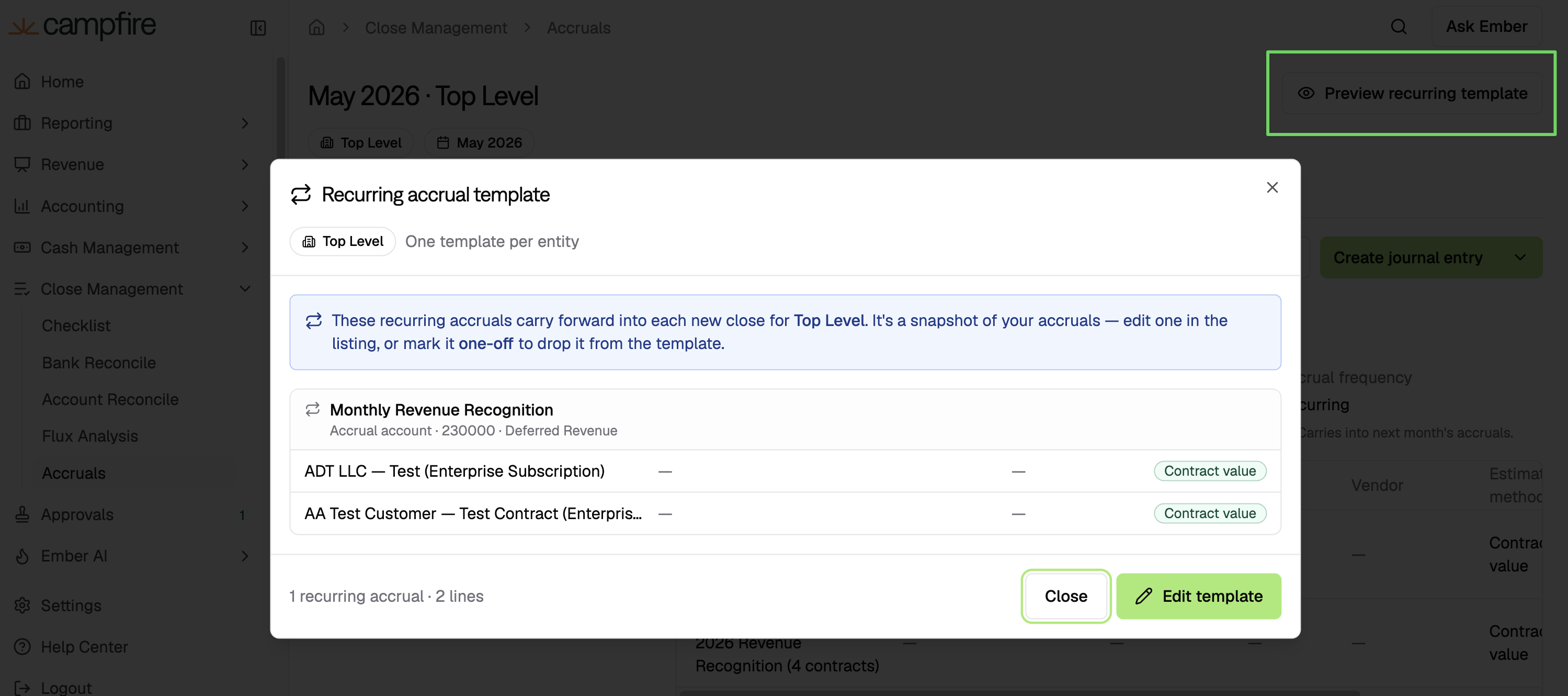
Click Preview recurring template at any time to see what carries forward to the next period.
Starting Next Month
When you open the workspace for the next close, start from your template instead of running discovery again.
Click Create
Choose Roll forward last month
Select the Month and Entity
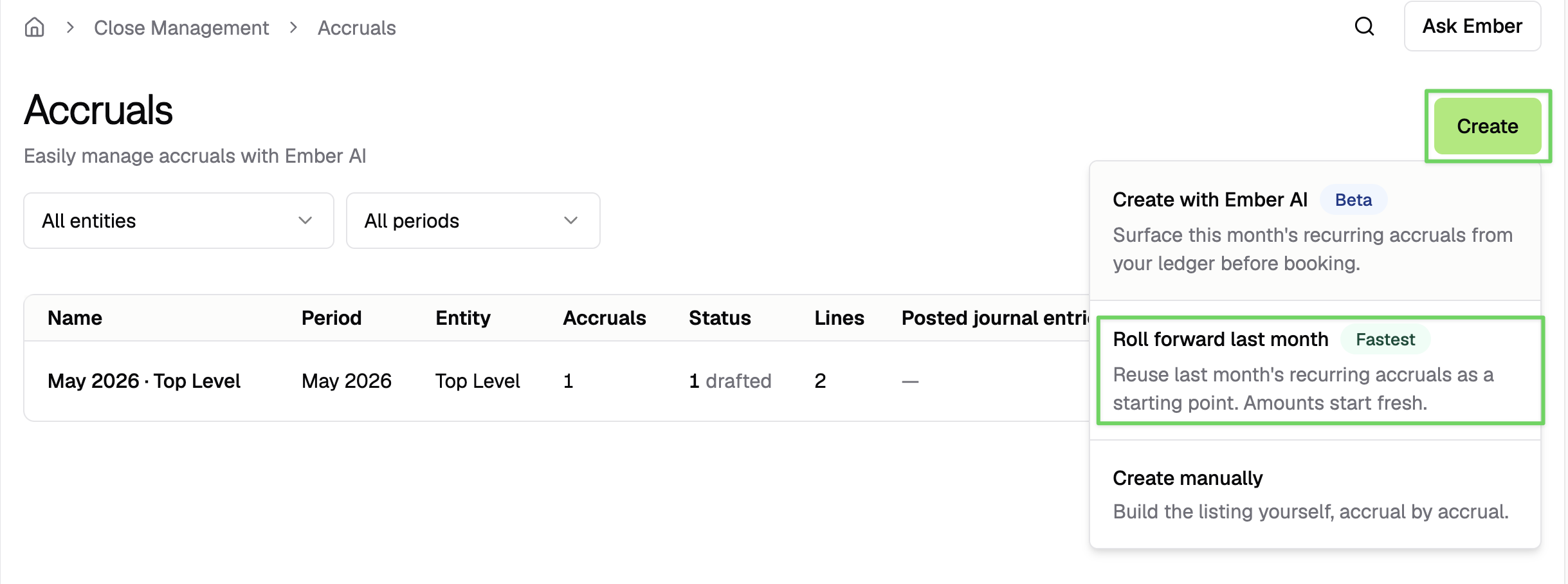
The same groups appear pre-populated with the same vendors and offset accounts. Run Prepare Journal on each to fill in this month's numbers.
Why the Accruals Module Matters
The accrual module helps you:
Replace spreadsheet hand-offs with a single durable surface
Cut prep time on recurring accruals
Keep a permanent record linked to every posted JE
Reuse your accrual setup across periods without re-doing the work
Each month becomes a quick preview, review, and post cycle instead of a from-scratch rebuild.
Questions
If you have questions or want help setting up your accruals for the first time, Campfire support is always here to help.