Creating a Sales Commission Amortization in Campfire
Last updated: June 29, 2026
Campfire’s Help Center has moved. As of June 2026, this article is no longer being updated. Find the latest version in our new Help Center: view here.
Sales commission amortization can now be managed directly in Campfire, allowing you to define your amortization schedule, generate journal entries, and link everything back to the underlying contract - all in one place. This can be created through three different ways
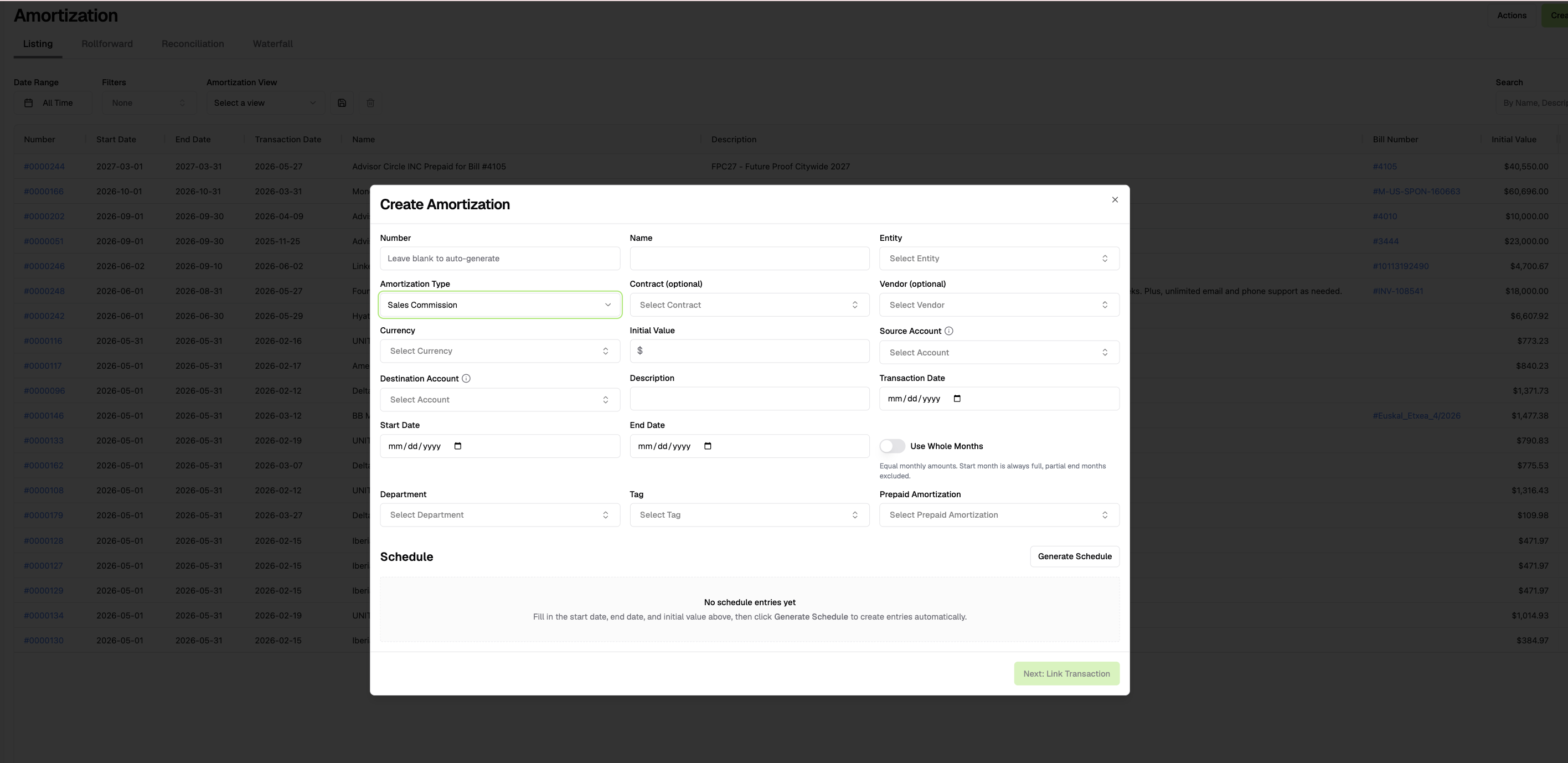
Creating an Amortization through the Amortization dashboard
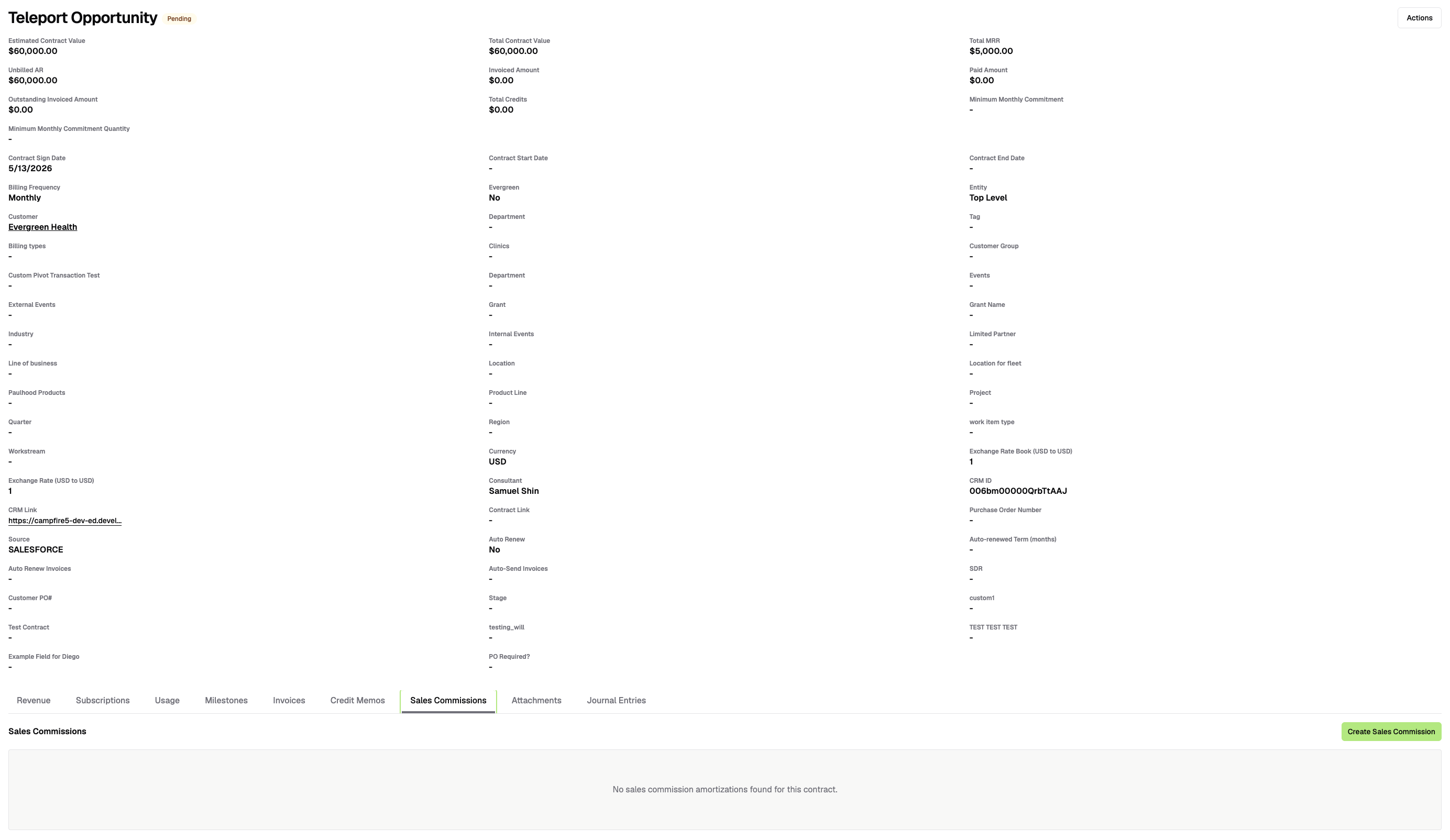
Creating a Sales Commission through the Contract Dashboard
Creating a Prepaid Journal Entry and linking it to the Sales Commission Amortization.
To get started, navigate to the Amortization section and fill out the following fields:
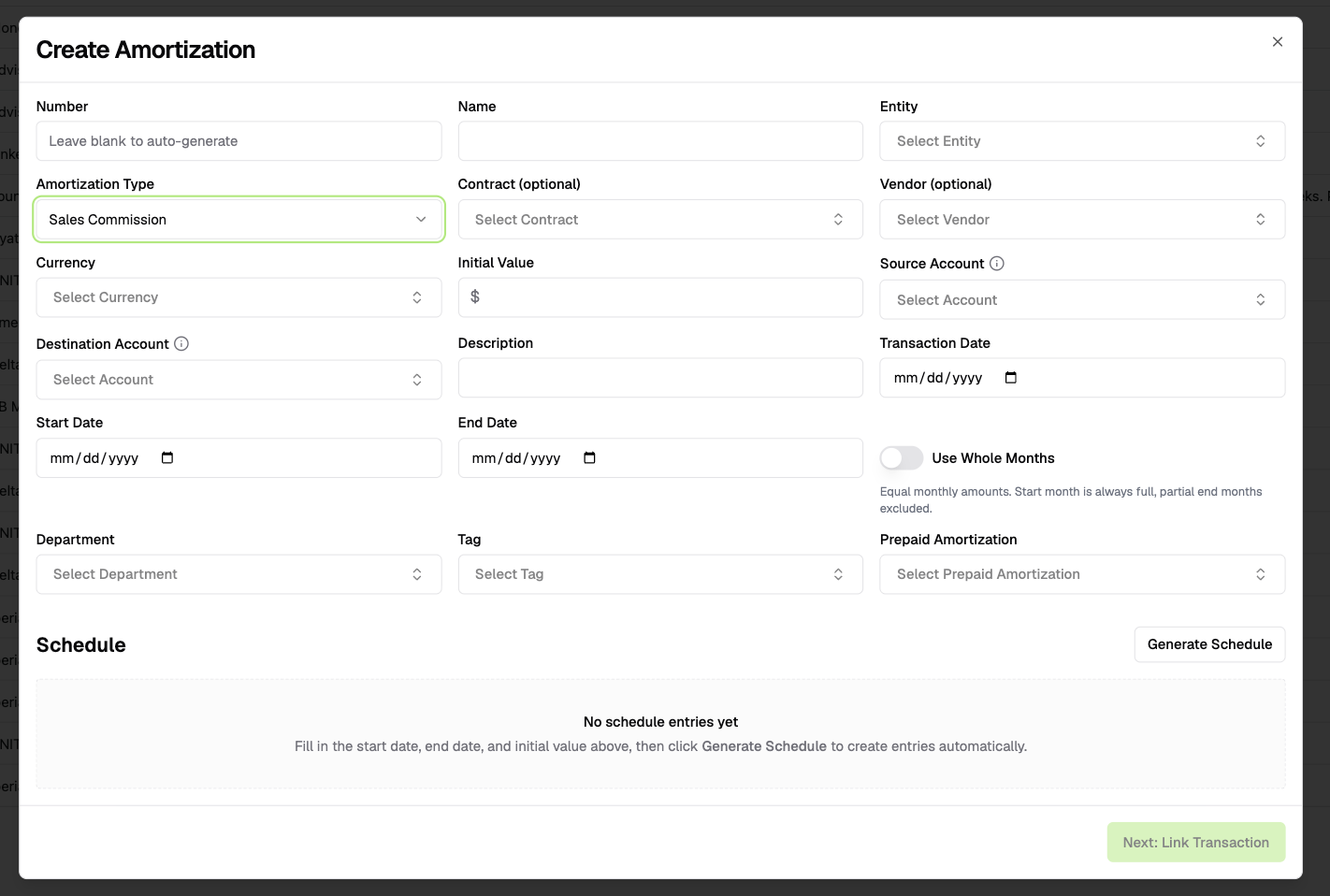
Number (optional) — Assign a reference number to the amortization.
Name — Enter a name for the sales commission amortization.
Entity — Select the entity that corresponds to the entity associated with the sales commission.
Amortization Type — Be sure to select Sales Commission from the dropdown.
Contract — If the related contract already exists in Campfire, link it here by selecting it from the dropdown.
Vendor — Select the vendor or customer associated with the contract. If they don't yet exist as a vendor in Campfire, you can add them directly from the Vendor dropdown.
Currency — Select the applicable currency if the expense was paid in a foreign currency. If left blank, the functional currency will be used by default. Note that if a foreign currency is selected, the amortization will be created in that currency.
Initial Value — Enter the total commission expense amount.
Source Account — Enter the account name or number this expense will be amortized from, typically a Prepaid Expense account.
Destination Account — Enter the account name or number this expense will be amortized to, typically a Sales Commission Expense account.
Description (optional) — Add any relevant notes or context.
Transaction Date (optional) — Specify the date of the original transaction if applicable.
Start Date — Enter the date the amortization period begins.
End Date (optional) — Enter the date the amortization period ends, if known.
Use Whole Months — Toggle on or off depending on whether you'd like amortization calculated in whole month increments.
Department (optional) — Associate the amortization with a specific department if applicable.
Tag (optional) — Link to a tag group for additional categorization.
Prepaid Amortization — Select the prepaid amortization account.
Once the create fields are filled in, you click Generate Schedule. Campfire spreads the Initial Value straight-line across the period from the Start Date to the End Date, producing one row per month. Each row has:
A posting date (the period it belongs to),
An amount (the straight-line portion for that period),
A posted indicator (empty until it's recognized in close).
The schedule rows must total the Initial Value. The final period absorbs any rounding remainder. If you turn on Use Whole Months, each whole month gets an equal amount and partial start/end months are handled accordingly.
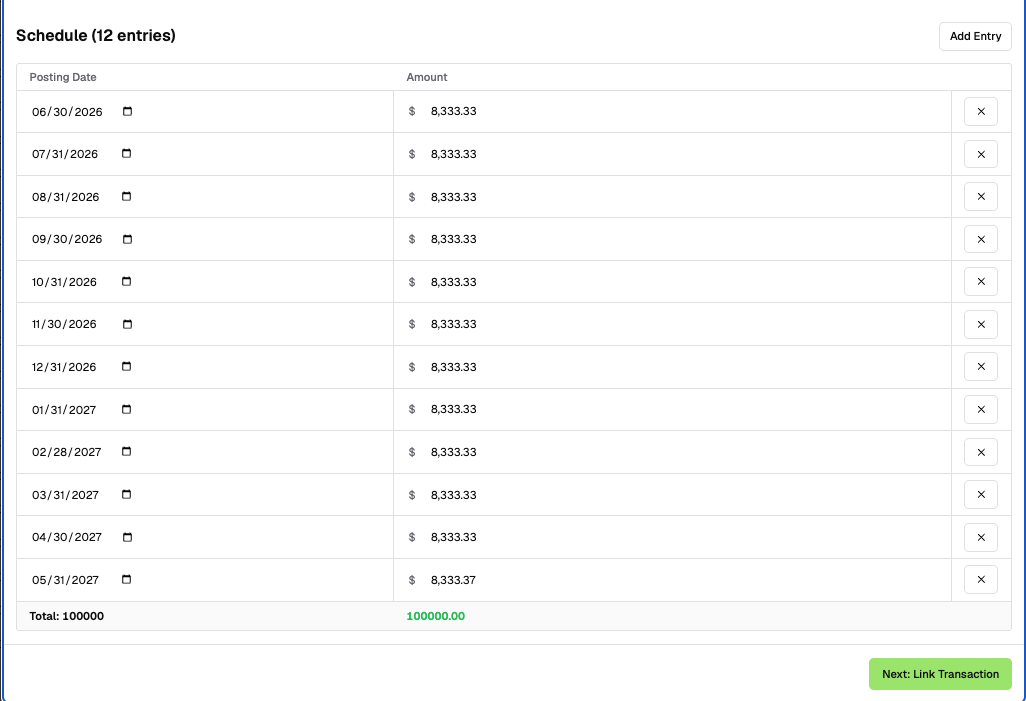
At this point nothing has hit the general ledger yet. The whole $8,333.33 still sits in the deferred (source) account, and the schedule just describes how it will be recognized.
Posting via Close Checklist
Schedule entries do not auto-post on their date and must be posted manually through the Bill Prepaid Amortization task in your close checklist. When you run this task, Campfire gathers all unposted schedule rows for that month and entity, combines them into a single proposed JE for your review, and links each row to that JE on save so nothing can be posted twice. Sales commissions run through this same task since they are treated as a different type of amortization.
Catch-up for skipped open months. If you missed posting earlier (still-open) months, the close task's cumulative catch-up option pulls in all unposted rows dated on or before the month you're closing — not just that month — so the skipped periods get swept into the current close's journal entry.
For each period's straight-line amount, the entry will look like this:
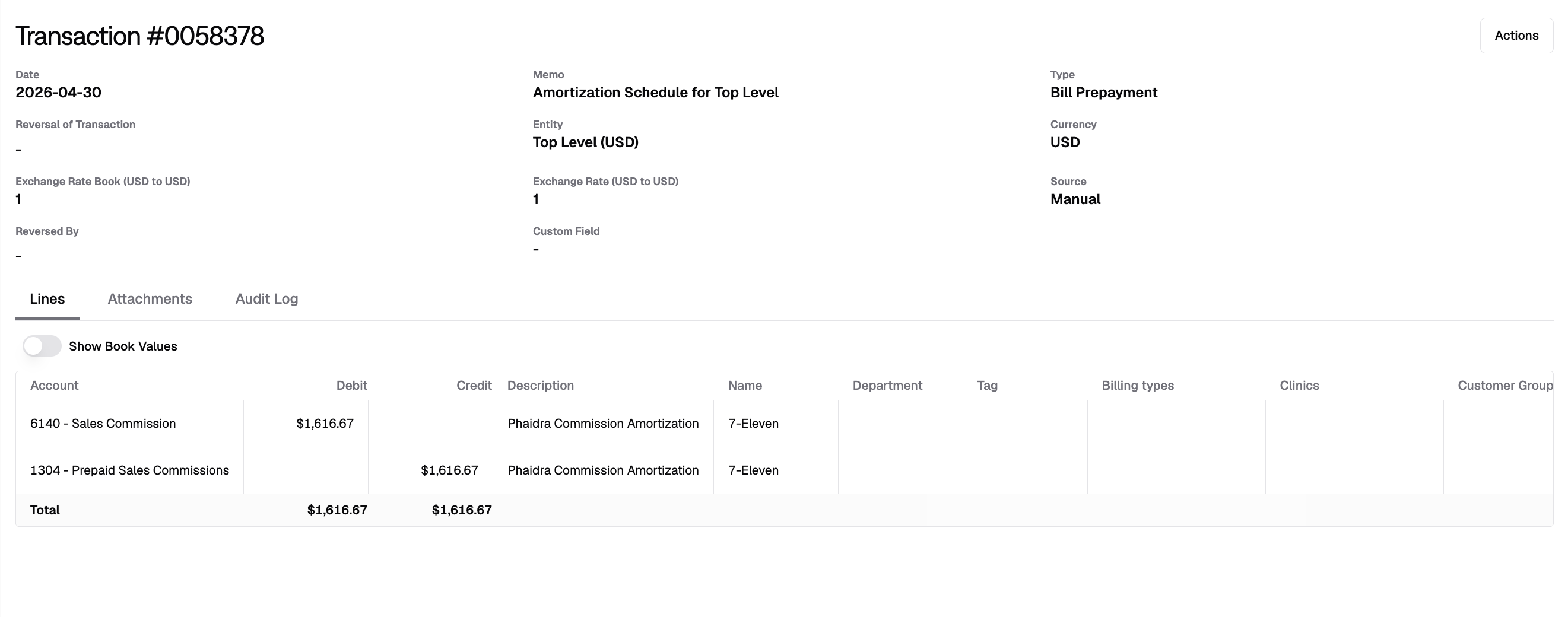
That moves $1,617 out of the Prepaid Sales Commission asset and into Sales Commission expense for the month. After the month end close task runs, the pertaining period shows Posted, the Prepaid Sales Commission drops expense is recognized. You repeat this each month as you close it.
If your amortization close JE combines multiple schedules for the entity, the per-period link lives on the individual JE line rows rather than the JE header, so a single JE can represent recognition across multiple bills and amortization types for that month.
How it all links back to the contract
The traceability runs end to end:
The commission amortization carries an optional Contract link (and it surfaces the contract's name and start/end dates). When you create the commission from a contract's Sales Commissions tab, that link is set automatically and the dates pre-fill from the contract term (you can override them).
From a contract, you can list all of its sales commissions (the Sales Commissions tab is filtered to that contract).
From each commission, you read its schedule, and each posted schedule row points to the journal entry that recognized it.
That gives you a clean audit trail: Contract → its sales commissions → each commission's schedule → the posted journal entry from the close task.