Usage-Based Billing, Invoicing and Revenue
Last updated: April 20, 2026
Usage-based (also called consumption-based or pay-as-you-go) billing and revenue is determined by actual product or service consumption rather than fixed periodic fees.
Common examples include (but not limited to):
Cloud infrastructure providers charging per compute hour
Communication platforms billing per SMS or API call
Data analytics tools pricing by gigabytes processed
AI services charging per token or inference
Payment processors taking a percentage per transaction
Overview
In Campfire, usage-based billing follows the following workflow:
Set-up - Configure products, pricing models, and contract terms that define how usage will be measured and billed
Tracking of prepaid credit usages and balances
Recording of Usage Data - Capture and meter actual customer consumption as it occurs
Invoicing - Generate customer bills based on metered usage and applicable pricing rules
Revenue Recognition - Post accounting entries through the monthly checklist
Setup
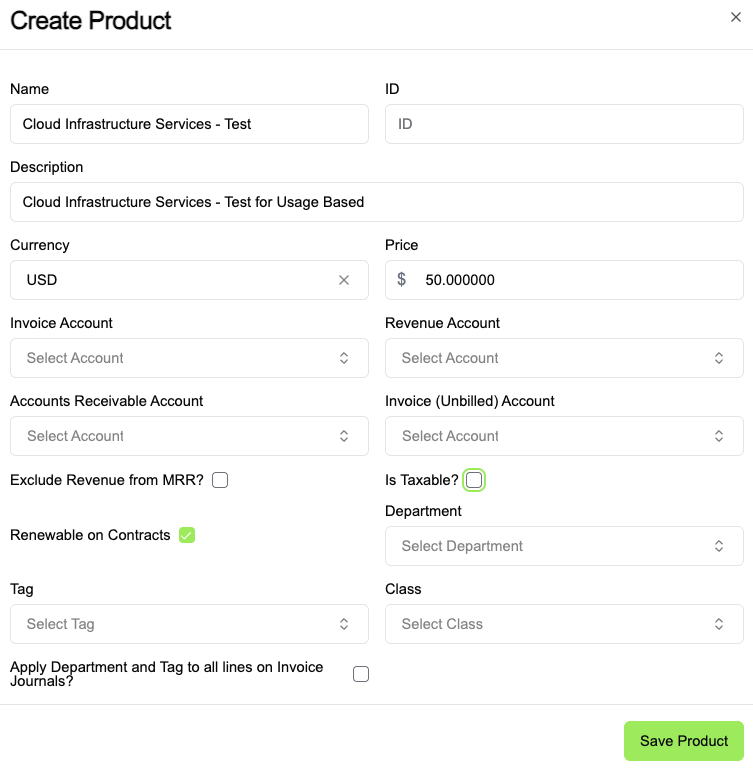
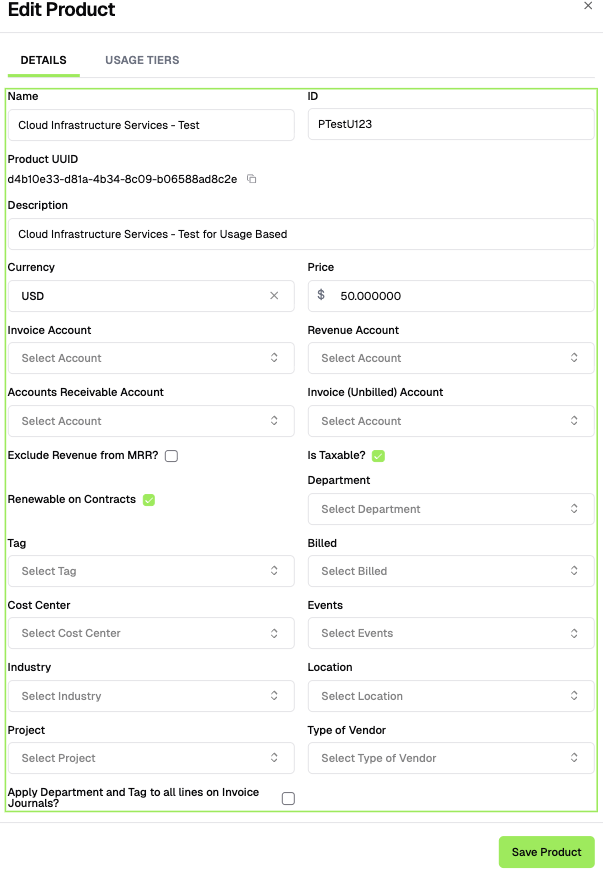
1a. Product A is set up in Campfire with a Usage Tier (See our article on product setup).
This product setup lets Campfire know what usage metrics to track and how to calculate charges based on consumption.
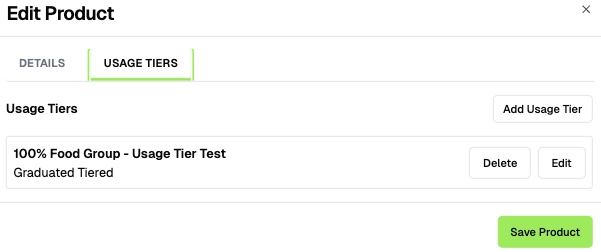
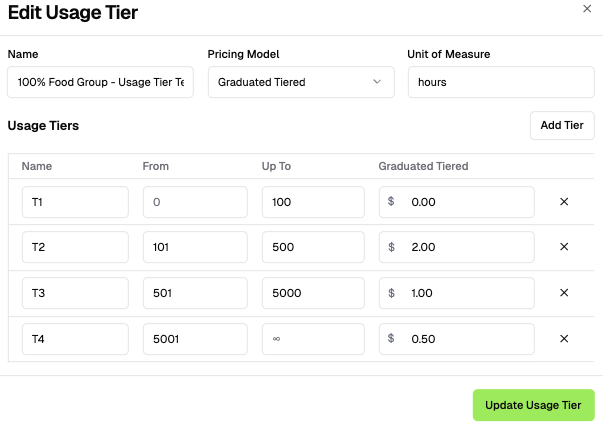
While creating the product, update Usage Tiers. Here, you can Add or Edit existing usage Tiers. Usage Tier types include Unit Based, Volume Based, Percentage Based, and Graduated Tiered usage.
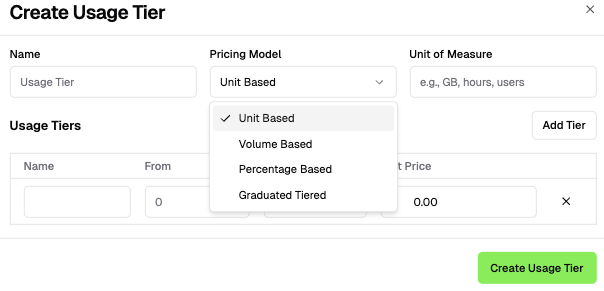
Enter your Usage Tier for the selected Product and Click Update Usage Tier.
1b. A Contract is set up for a Customer (See our article here on contract setup). Within the contract setup, you can configure two usage-based key settings:
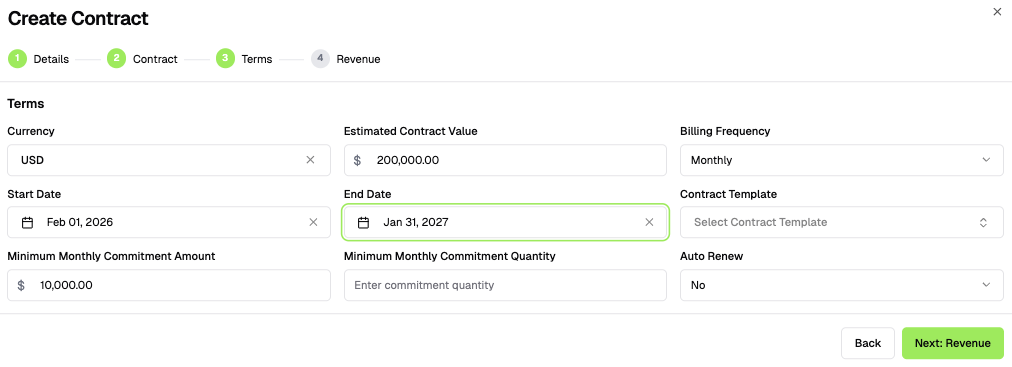
Terms (Min Amount) - Inputting a 'Minimum Monthly Commitment Amount' and 'Minimum Monthly Commitment Quantity' establish the guaranteed minimums for the contract.
Campfire uses these values to ensure the customer is billed for at least the committed amount each period, regardless of actual usage, and to trigger the appropriate revenue recognition treatment
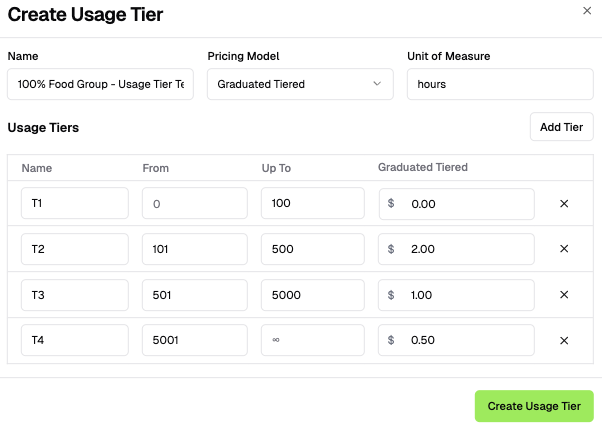
Revenue (Usage Tiers) - In addition to being created at the Product level, Usage Tiers can also be created at the Contract level. Updating tiers within the contract will drive how revenue will be recognized.
Record Usage Data
Once Product and Contract setup is complete, record usage data for a customer one of two ways, Manually or via CSV Upload:
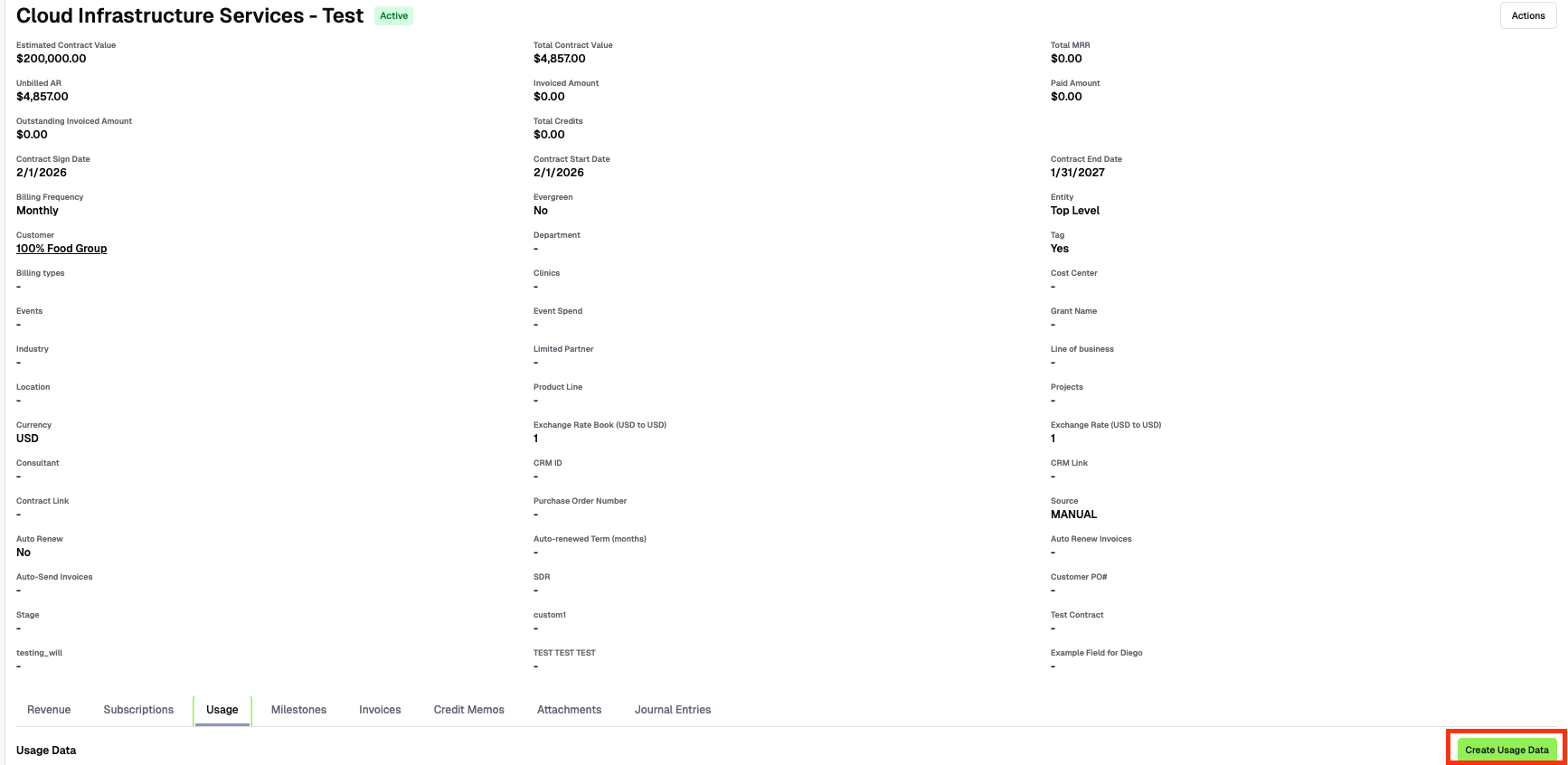
Manually - Navigate to the Customer's Contract (Revenue > Contracts) to add usage data.
Create Usage Data
Click the Create Usage Data button.
Enter the usage lines for the billing period (February 2026 in this example)
Click the Apply Usage Tiers - to apply and preview the tier pricing structure you previously configured to the usage data you just entered.
Review the calculated amounts, then click 'Create Usage Data' to save
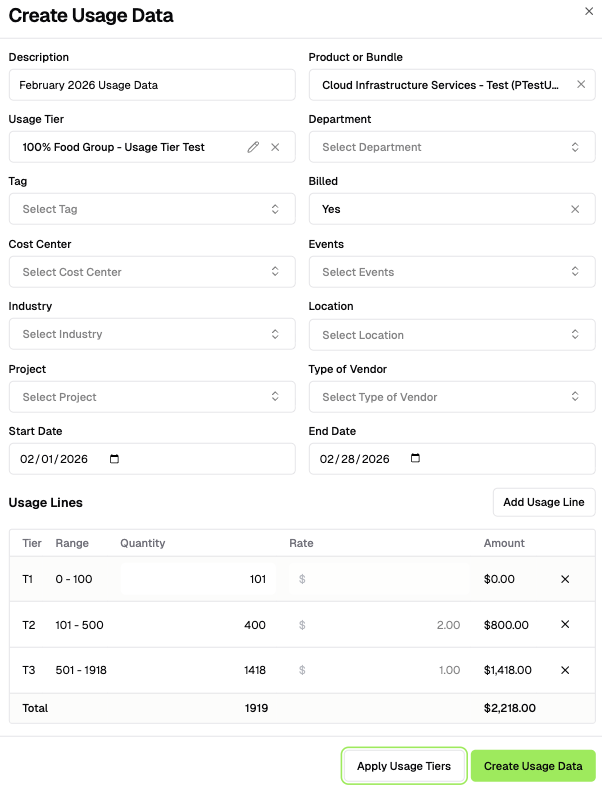
Via CSV Upload. You can bulk upload usage data through CSV. Go to Revenue > Contracts > Actions > Upload Usage Data. Using the 'Download Template', update the following required fields:
Contract Name
Product Name
Product ID
Product Identifer
Usage Group
Description
Start Date
End Date
Quantity
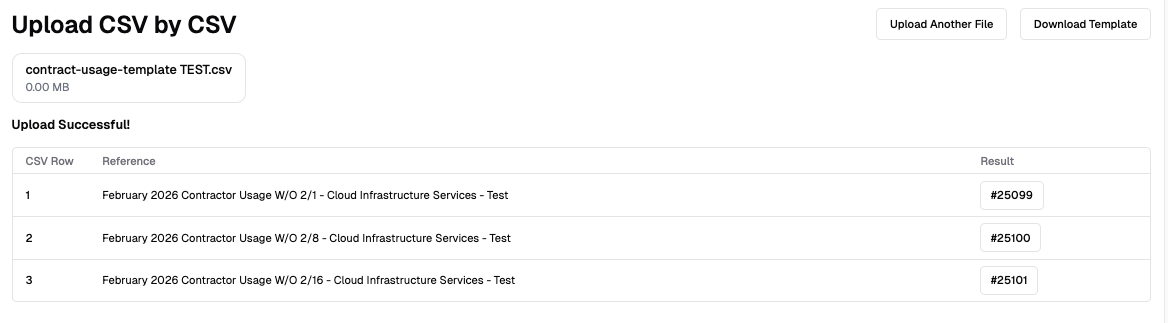
The uploaded usage-based data will now appear in the 'Usage' section of the contract.
Invoicing:
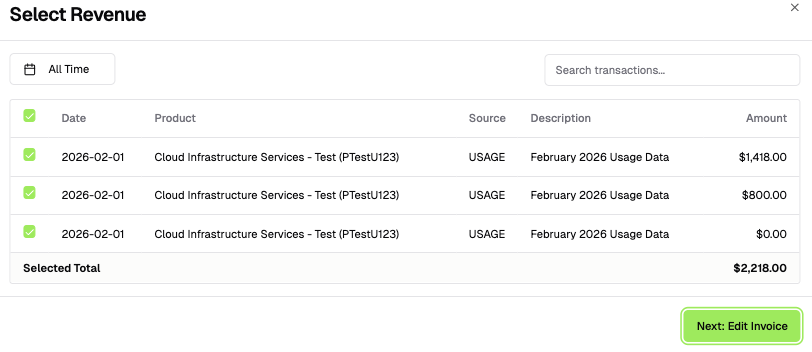
Navigate to the Invoices tab of the Contract. Here, you can select which Usage Lines to include in the invoice.
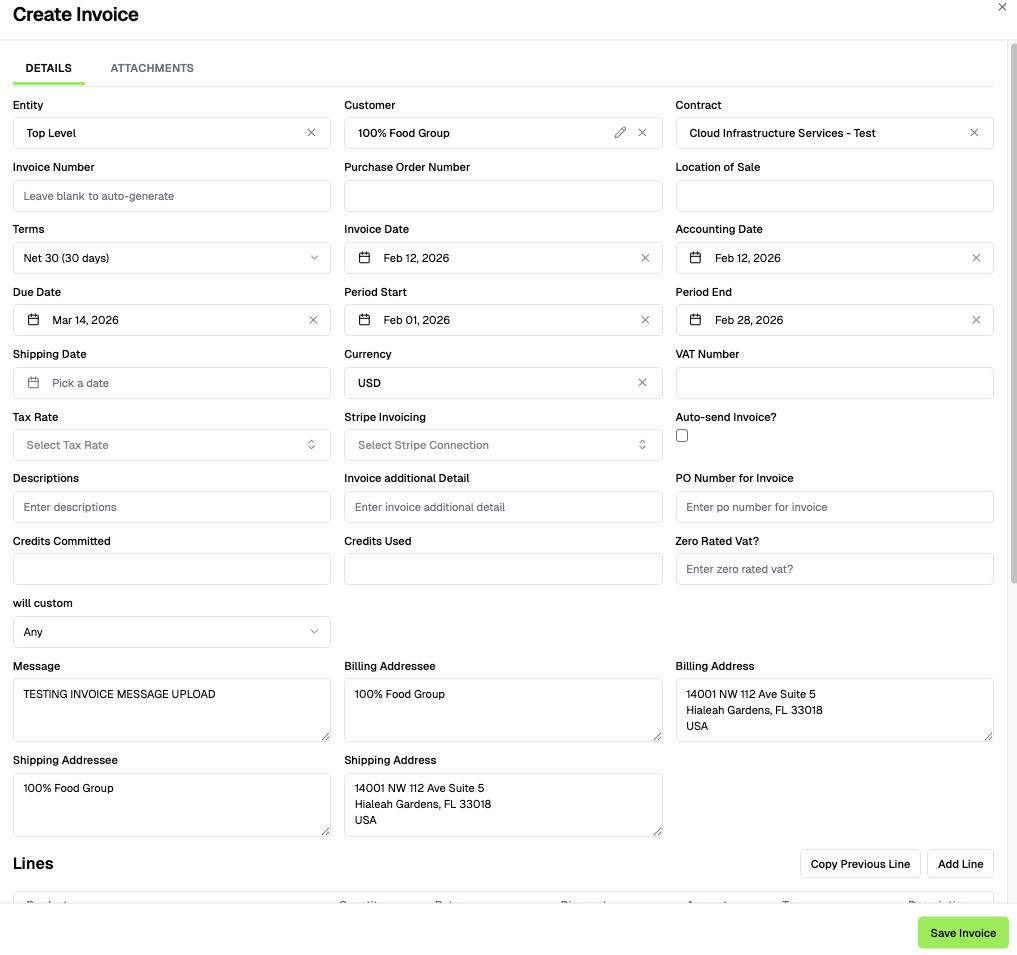
Click Create Invoice to generate the invoice, making any necessary edits before finalizing.
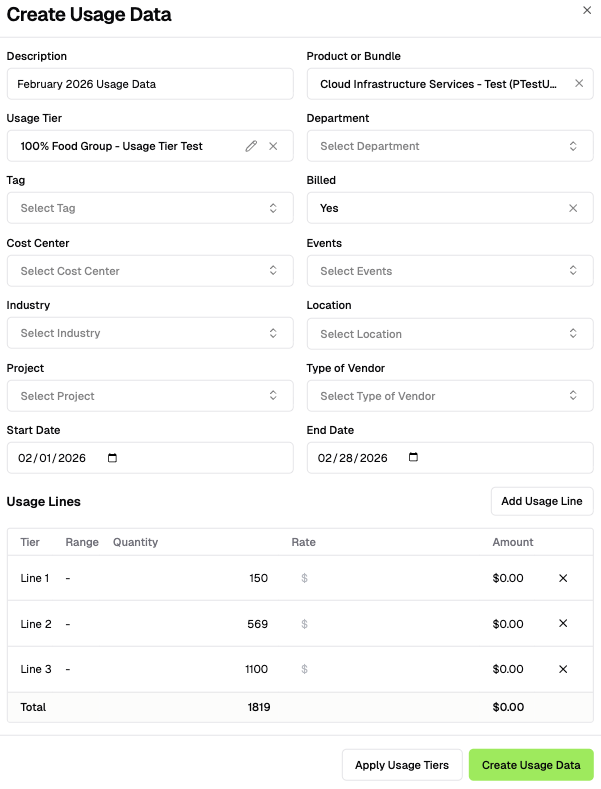
Revenue Recognition
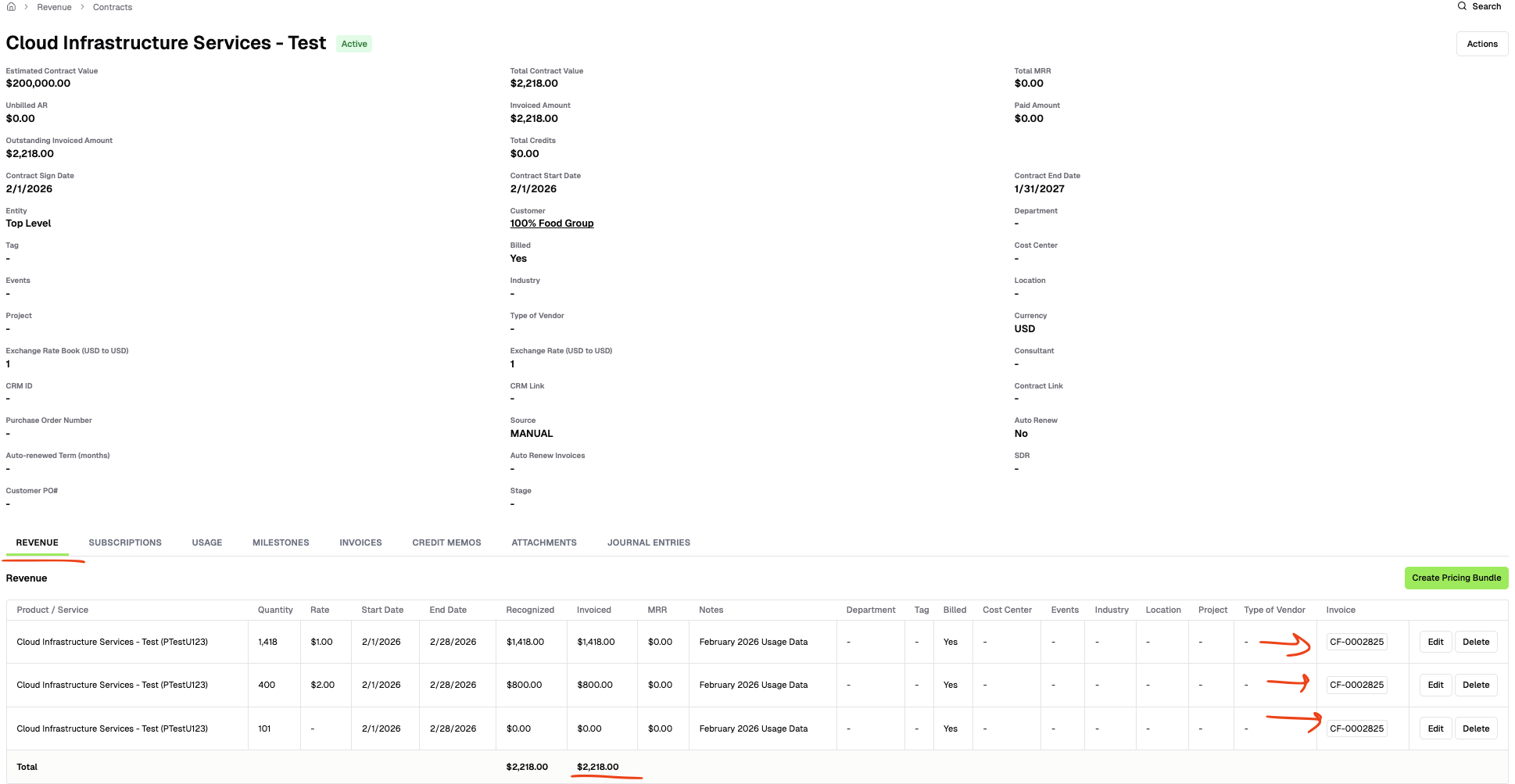
Navigate to the Revenue section of the Contract. Multiple revenue lines now appear for this period. These lines will automatically create the necessary revenue recognition entries when you execute the month-end close checklist.