How to utilize MultiBook in Campfire
Last updated: June 29, 2026
Campfire’s Help Center has moved. As of June 2026, this article is no longer being updated. Find the latest version in our new Help Center: view here.
Overview
MultiBook lets you maintain a secondary set of books — for example, IFRS alongside US GAAP, tax-basis on top of book, or local statutory alongside management reporting — without re-keying any transactions. Every transaction posts once to the primary entity; Campfire automatically mirrors that activity into a linked adjusting entity, and you post only the differences on top.
Once your adjusting entity is set up (your Campfire contact can do this for you), the month-end workflow is the same five steps each period:
1. Close the period on the primary entity
2. Post your adjusting journals to the adjusting entity
3. Check your work in the Primary vs Adjusting report
4. Run financial reports against the adjusting entity
5. Lock the adjusting entity, then repeat next period
Step 1: Close the primary entity
Finish all normal month-end work on the primary entity: bank reconciliations, depreciation, accruals, revenue cut-off, etc. Then lock the primary entity — this triggers Campfire to take the trial-balance snapshot the adjusting entity's reports build on.
Navigate to Settings → Lock Period → Entity-Level Locks and click Edit. In the Entity Lock Dates dialog, set the lock date, check the primary entity, and click Save.
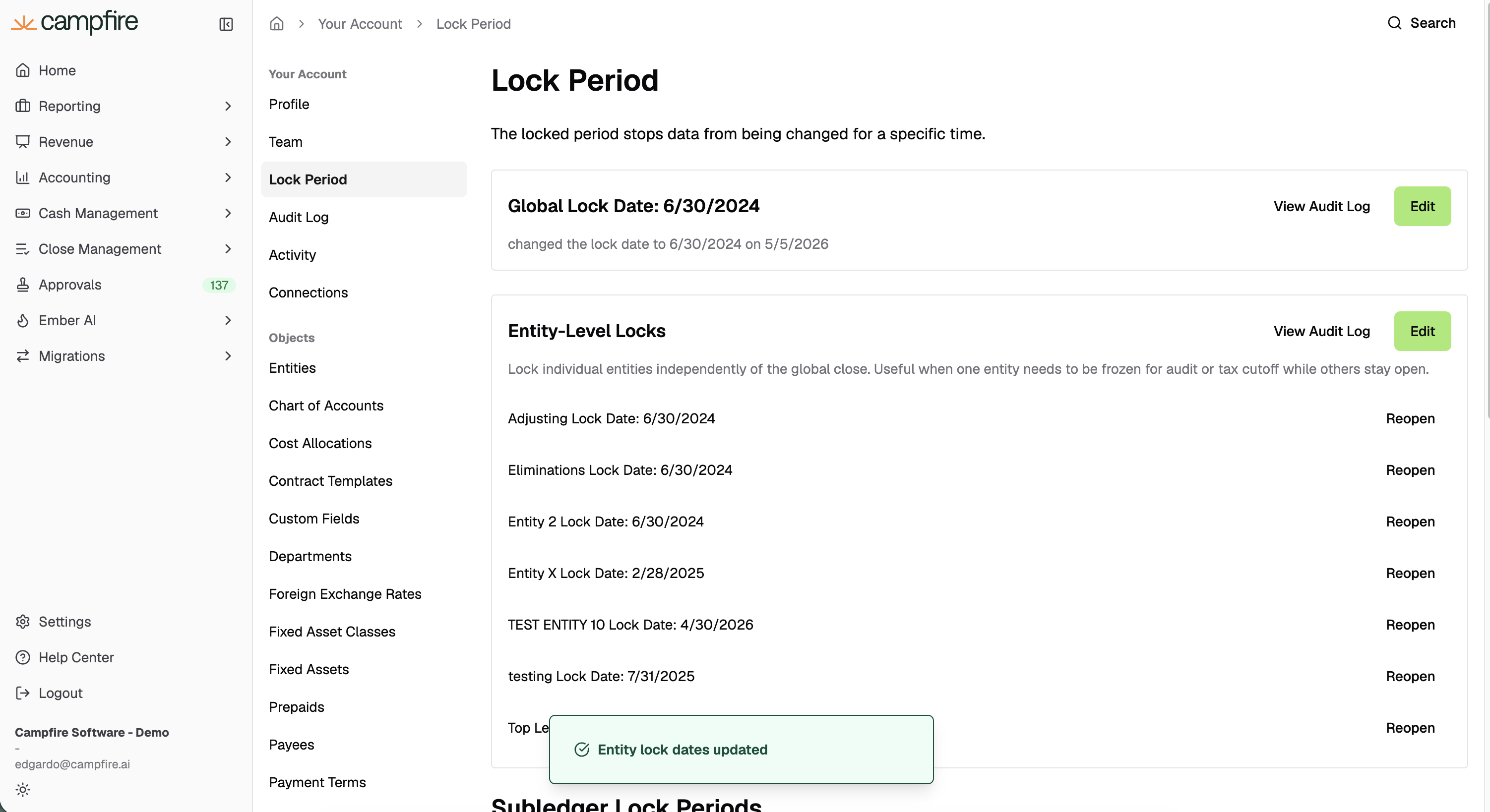
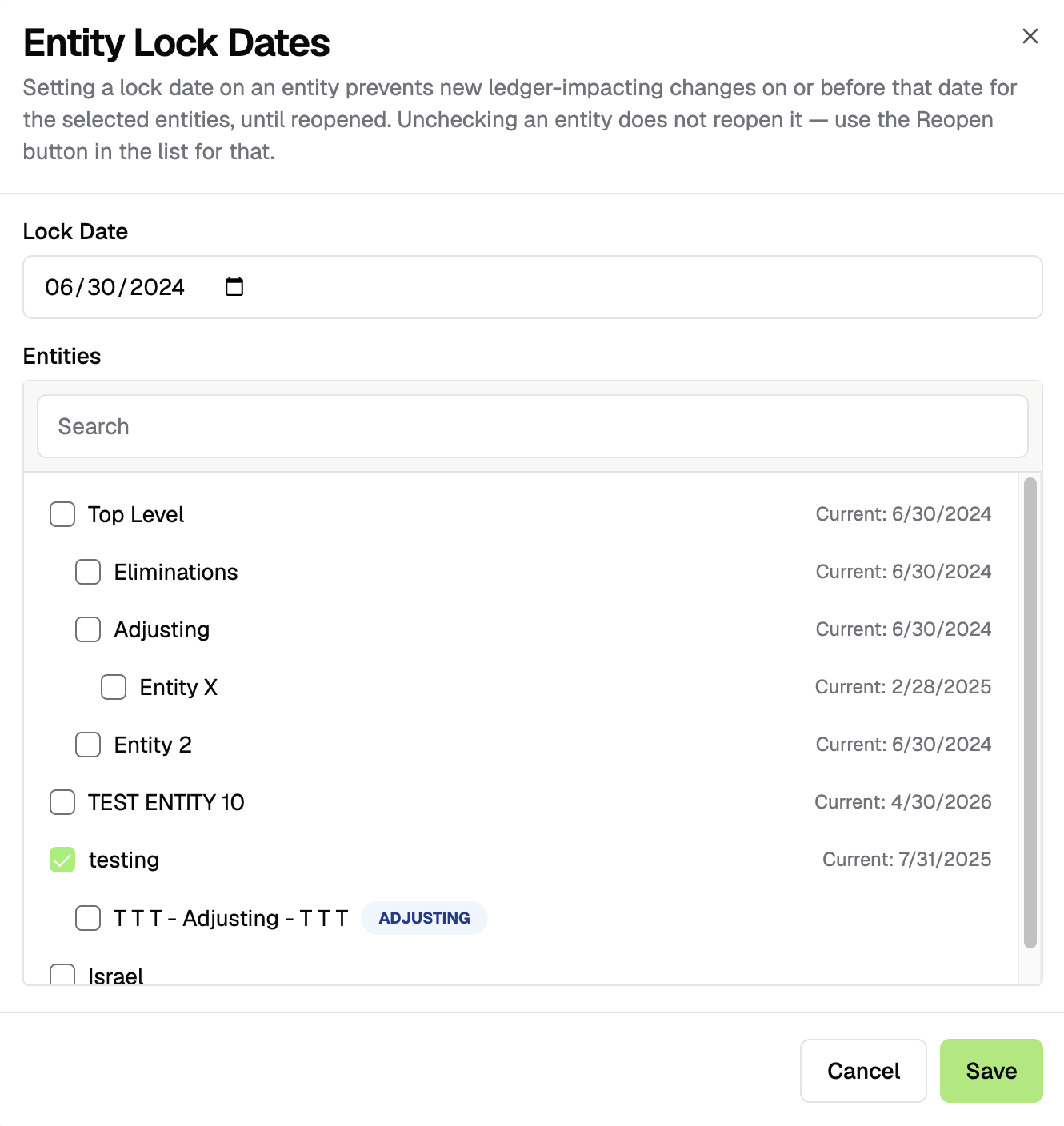
Tip: Do not lock the adjusting entity yet — you still need to post your adjustments. Unchecking an entity in the dialog does not reopen it; use the Reopen button in the list for that.
Step 2: Post your adjusting journals
Post only the differences needed for the secondary book. These are the entries that produce IFRS-vs-GAAP differences, tax-vs-book differences, statutory adjustments, etc.
Navigate to Accounting → New Journal Entry. Fill in the entry as usual, but select your adjusting entity from the Entity dropdown. It will appear tagged "(Adjusting)" alongside its inherited currency (e.g., Campfire UK Ltd (Adjusting) (USD)).
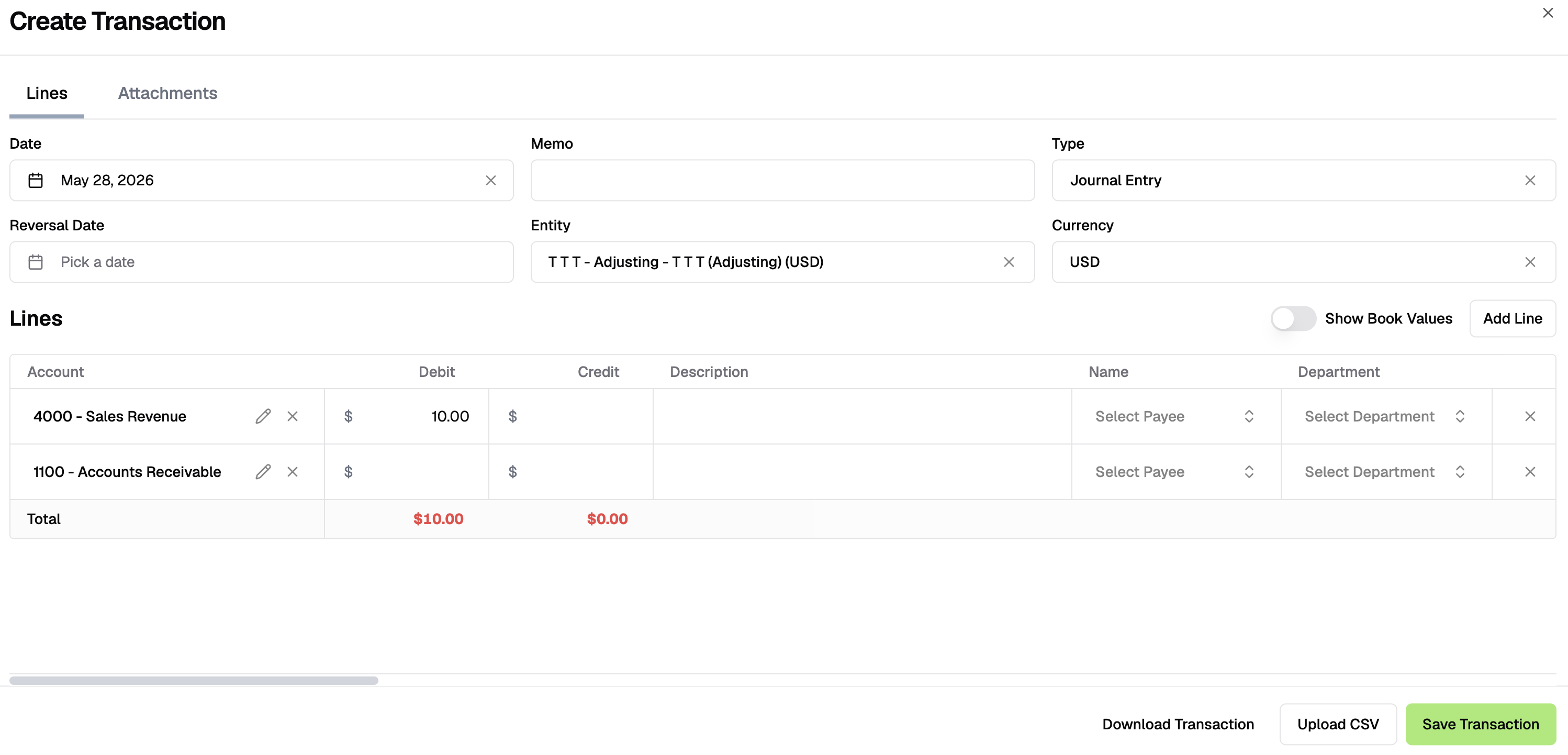
All standard journal entry fields are available: Date, optional Reversal Date, line-level accounts, debits/credits, descriptions, payees, departments, and tags. You can also use Upload CSV — the CSV resolver recognizes adjusting entity names.
Tip: Repeat for every adjustment needed this period: revenue recognition timing differences, alternative depreciation, IFRS lease adjustments, tax provision entries, etc.
Step 3: Review in Primary vs Adjusting
Navigate to Reporting → Primary vs Adjusting to see a side-by-side comparison.
Set the filters: Primary Entity, Adjusting Entity, Date Range, and View (Balance Sheet or Income Statement). The report is capped at the primary entity’s close date — Campfire shows a “Date range capped at close date” notice and blocks a start date beyond it.
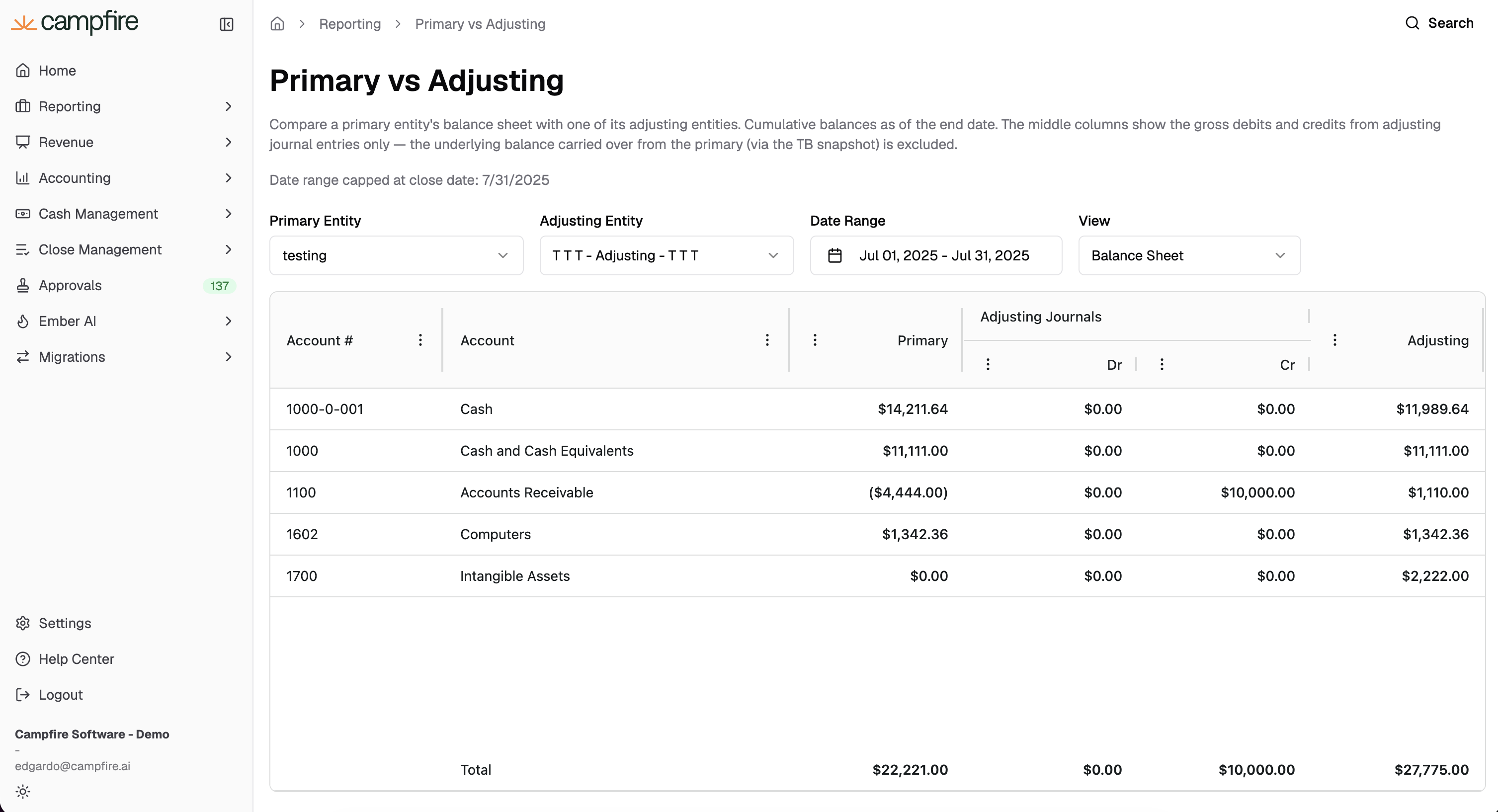
The report shows:
Primary: Primary entity's balance
Adjusting Journals (Dr/Cr): Gross debits and credits from adjusting journal entries in the date range (primary balance carried in via the TB snapshot excluded)
Adjusting: Final adjusted total (primary + adjustments)
View behavior:
Balance Sheet view: the Adjusting column is cumulative as of the end date, so prior-period adjustments appear even when the Dr/Cr columns show zero for the selected range.
Income Statement view: both Primary and Adjusting show period activity; Adjusting combines primary + adjusting activity.
Click any value in the Dr or Cr column to open a drill-through panel listing the journal entries behind it (date, journal number, description, amount). Use this to verify or fix individual adjustments.
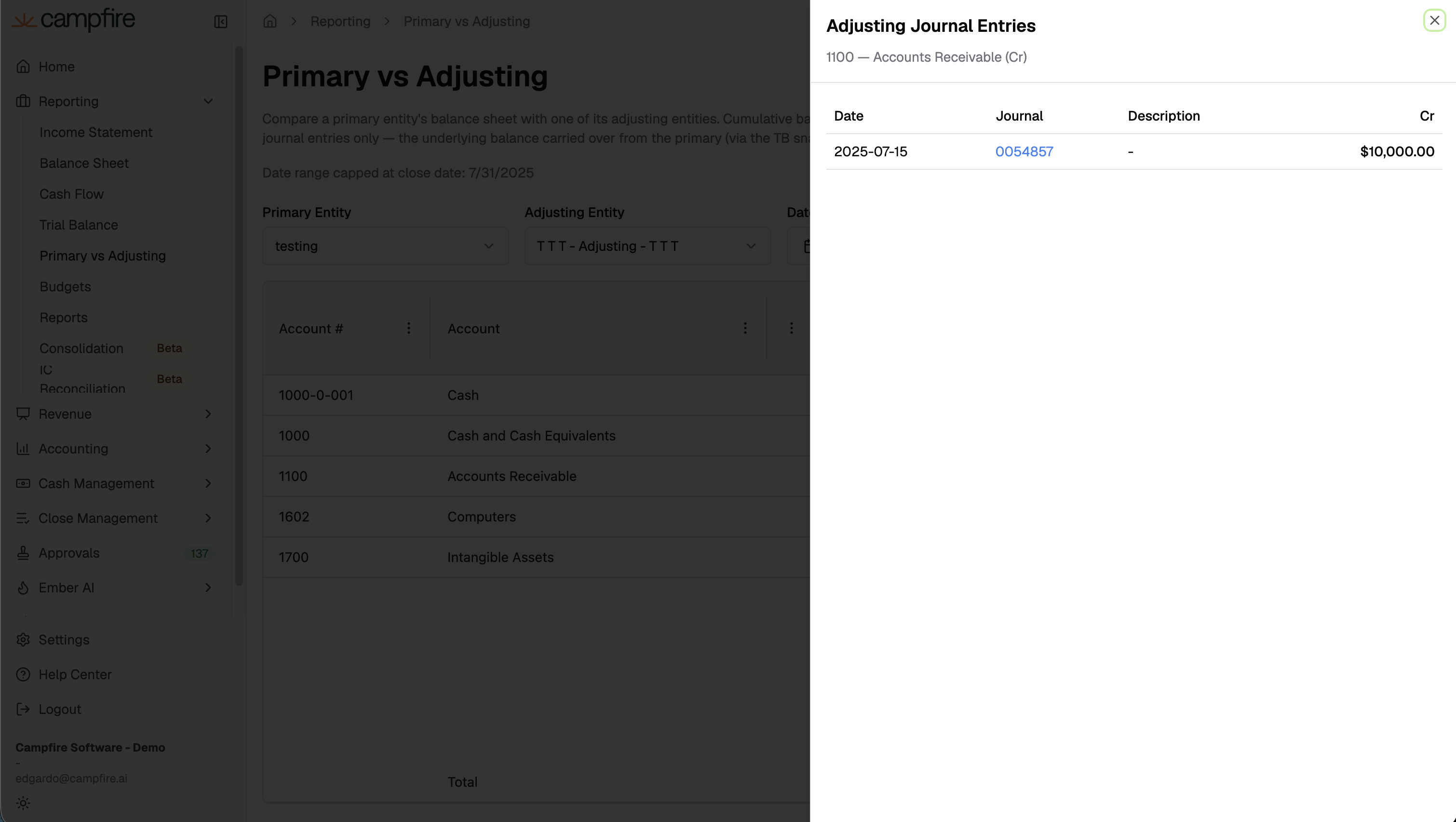
If anything looks wrong, go back to Step 2, fix the journal entry, and come back here.
Step 4: Run secondary-book financial reports
Once adjustments look correct, you can produce your secondary-book financials from any of the standard reports:
• Reporting → Balance Sheet
• Reporting → Income Statement
• Reporting → Trial Balance
• Reporting → Cash Flow
• Accounting → General Ledger
In each report, select the adjusting entity in the Entity filter. With no adjustments, the output is identical to the primary entity's. With adjustments posted, it reflects primary + your adjustments. Selecting both the primary entity and its adjusting entity in the same report does
Note: Adjusting entities are deliberately excluded from consolidated rollups, intercompany.
Step 5: Lock the adjusting entity and repeat
When the secondary-book financials are signed off, lock the adjusting entity to freeze the period:
1. In the Close Checklist, mark the "Review Adjusting Entity Entries" task complete. This task appears automatically after the primary entity close tasks and records who reviewed and when.
2. Navigate to Settings → Lock Period → Entity-Level Locks → Edit, check the adjusting entity, set the same lock date used for the primary entity, and click Save.
Once both entities are locked, no further entries can be posted to either book for that period. Begin the next period at Step 1.
Quick Reference
What | Where |
Lock the primary or adjusting entity | Settings → Lock Period → Entity-Level Locks |
Post an adjusting journal entry | Accounting → New Journal Entry (Entity = adjusting entity) |
Side-by-side comparison + drill-through | Reporting → Primary vs Adjusting |
Secondary-book financials | Reporting → Balance Sheet / Income Statement / Trial Balance, Entity = adjusting entity |
Close checklist review task | Close Management → period close checklist |
Getting Help
If you need MultiBook enabled in your workspace, want a new adjusting entity created, or have questions about how to model a particular adjustment, reach out to your Campfire contact.